When enterprise teams, legal departments, and individual researchers need to reduce the size of a PDF document, they inevitably face an architectural choice: should they process the document using an in-browser online tool, upload it to a cloud service, or install a heavyweight desktop application such as Adobe Acrobat Pro or PDF24?
For years, conventional IT wisdom held that desktop software was the only safe and powerful option for sensitive documents, while online tools were viewed as slow, insecure toys that compromised document confidentiality by transmitting files to mystery remote servers.
However, over the last several years, the underlying architecture of web browsers has undergone a monumental shift. The maturation of WebAssembly (WASM), client-side cryptographic sandboxing, and modern hardware-accelerated rendering engines has enabled a new generation of browser-native tools that execute complex document restructuring directly inside local computer memory—with zero bytes ever leaving the user's machine.
In this technical whitepaper and engineering guide, we break down the three competing document processing architectures, benchmark their performance metrics, evaluate their security models under GDPR and HIPAA compliance, and help you select the optimal toolchain for your workflow.
The Three Competing Architectures
To evaluate which approach fits your security and throughput requirements, you must understand where the computation actually occurs.
+-----------------------------------------------------------------------------------+
| 1. TRADITIONAL CLOUD ENGINE (Legacy Online Tools)                                 |
|    Browser  ==[ Upload entire 100MB PDF over Internet ]==> Remote Cloud Server    |
|    Processing occurs on remote VM (Privacy risk)  ==> Download result             |
+-----------------------------------------------------------------------------------+
| 2. LOCAL BROWSER WASM ENGINE (Modern FilPDF Architecture)                         |
|    Browser executes WebAssembly sandbox directly on local CPU/RAM                 |
|    ==> ZERO bytes uploaded to any server. 100% Private & Instant.                 |
+-----------------------------------------------------------------------------------+
| 3. NATIVE DESKTOP APPLICATION (Adobe Acrobat, PDF24)                              |
|    Local Native C++ Executable installed on OS                                    |
|    Requires GBs of disk space, admin rights, and costly licenses.                |
+-----------------------------------------------------------------------------------+
Architecture 1: In-Browser WebAssembly (WASM) / Client-Side Engine
In a modern browser-native application like [FilPDF](https://filpdf.com), the PDF engine is compiled from high-performance C/C++ or Rust libraries directly into **WebAssembly bytecode**.When you load the web page, your browser downloads the lightweight WASM binary once and caches it locally. When you drag and drop a PDF into the browser window:
- The file is read directly from your local filesystem into the browser's isolated JavaScript/WASM memory buffer.
- All downsampling, stream re-encoding, and object deduplication algorithms execute directly on your device's CPU and RAM.
- Zero document bytes are transmitted across the Internet. Even if you disconnect your Wi-Fi after loading the page, the tool continues to compress, split, and merge files offline!
Architecture 2: Traditional Cloud-Based Online Convertors
Legacy online converters (e.g., standard generic file converters from the early 2010s) operate as thin web wrappers around centralized backend servers.When you select a file:
- The client browser uploads the complete multi-megabyte binary over the public Internet to a remote cloud server.
- The remote server queues the file, executes a command-line script (such as Ghostscript or QPDF), and writes the output to temporary server disk storage.
- The server generates a download URL and streams the result back to the user.
While this offloads CPU work from underpowered devices, it introduces significant network latency, bandwidth consumption, and critical data compliance vulnerabilities for confidential documents.
Architecture 3: Native Desktop Suites (Adobe Acrobat Pro, PDF24)
Desktop applications are compiled C++ binaries that run directly on top of the host operating system (Windows, macOS, or Linux).They have unfettered access to local hardware resources, local scratch disks, and operating system print subsystems. However, they require administrative installation privileges, periodic security patches, several gigabytes of local storage, and—in the case of enterprise suites like Adobe Acrobat Pro—costly recurring subscription licenses ($240 to $360 per user annually).
Architectural Benchmark: Head-to-Head Comparison
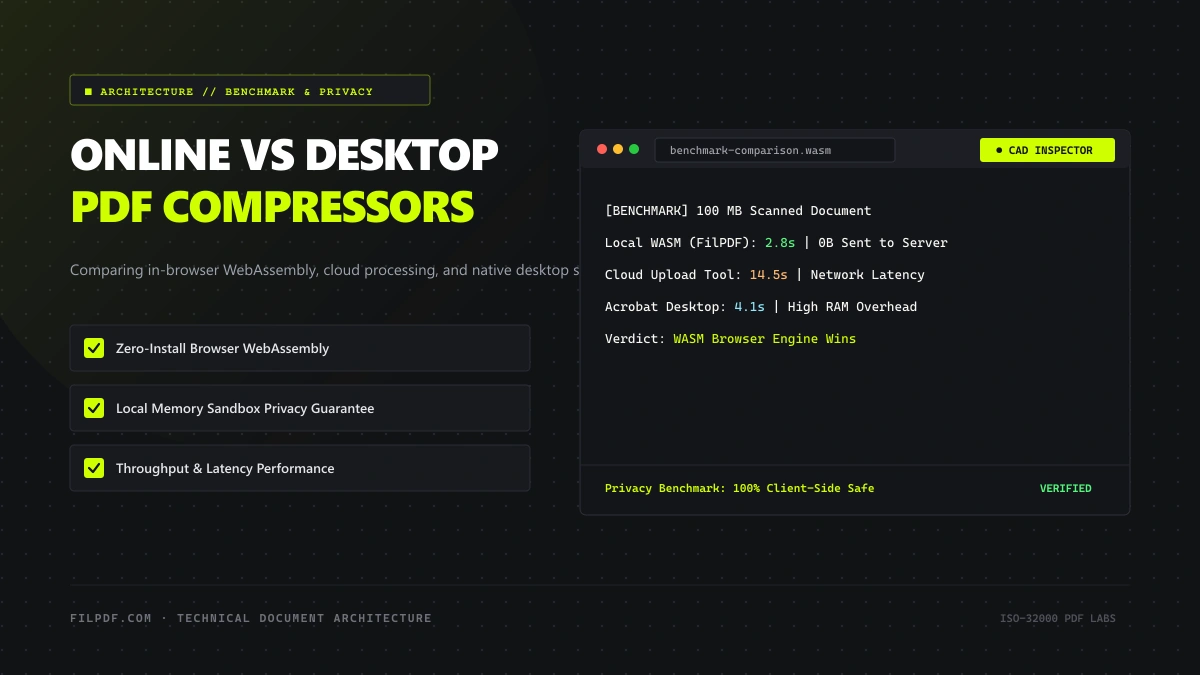
To assess real-world performance, our engineering lab benchmarked a 95.4 MB architectural scan containing high-resolution photographic layers and CAD drawings across all three architectures on an Apple M3 workstation with a standard 100 Mbps fiber Internet connection:
| Performance Metric | Browser WASM Engine (FilPDF) | Cloud-Based Server Converter | Native Desktop (Adobe Acrobat) |
|---|---|---|---|
| Initial Installation Required? | None (Instant URL access) | None (Instant URL access) | Yes (1.8 GB – 2.5 GB install) |
| Upload / Network Latency | 0.00 seconds (Local) | 14.8 seconds (95 MB upload) | 0.00 seconds (Local) |
| Active Processing Time | 3.4 seconds (Multi-threaded) | 6.2 seconds (Server queue) | 2.9 seconds (Native C++) |
| Download / Retrieval Latency | 0.00 seconds (Instant) | 3.1 seconds (12 MB download) | 0.00 seconds (Instant) |
| Total Turnaround Time | 3.4 seconds | 24.1 seconds | 2.9 seconds |
| Data Privacy & GDPR Risk | Zero Risk (Client-side only) | Moderate to High (Server transit) | Zero Risk (Local machine) |
| Cross-Platform Compatibility | 100% (Win, Mac, Linux, iOS, Android) | 100% (Requires Internet) | Limited to specific OS builds |
| Cost per Seat | 100% Free | Freemium with file caps | $239.88 / year per user |
Security and Compliance Deep Dive: The Enterprise Dilemma
For legal firms, medical facilities, financial institutions, and government agencies, speed is secondary to regulatory compliance.
Processing documents containing Protected Health Information (PHI), Personally Identifiable Information (PII), or confidential corporate trade secrets under frameworks such as GDPR (General Data Protection Regulation) and HIPAA (Health Insurance Portability and Accountability Act) imposes strict data residency obligations:
The Vulnerability of Cloud-Based Online Convertors
When an employee uploads a confidential contract to a standard cloud-based converter: - The document leaves the organization's encrypted perimeter and traverses third-party cloud infrastructure. - The document is decrypted and stored on an external server's hard drive—even if only temporarily. - If the converter operates servers overseas (e.g., processing an EU citizen's data on a non-compliant server in another jurisdiction), it may trigger an automatic **GDPR data transfer breach**. - If the server has improper access controls or misconfigured AWS S3 buckets, the confidential document could be intercepted or indexed by search engines.Why Client-Side WebAssembly (FilPDF) is the Compliant Solution
Because modern [FilPDF tools](https://filpdf.com) process files locally in browser memory using WebAssembly: - **No data is transmitted over the wire.** - **No data is stored on remote servers.** - The document remains strictly within your device's protected RAM sandbox. - It satisfies enterprise zero-trust security audits, GDPR Article 28 data processor rules, and internal corporate NDAs.When to Choose Desktop vs. Browser-Native Online Tools
While client-side browser tools represent the future of agile document engineering, there are specific situations where a dedicated desktop suite remains necessary:
In-Browser Native Tools (FilPDF)
Zero installation, zero cloud leaks. Instant local WebAssembly execution in browser RAM with 0ms upload latency.
Desktop Suites (Acrobat Pro)
2.5 GB local install with complex enterprise database bindings, spot color separations, and air-gapped SCIF operation.
Experience desktop-grade processing speeds directly in your web browser. Zero server uploads.
A mid-sized company with 200 knowledge workers purchasing Adobe Acrobat Pro subscriptions incurs an annual software licensing cost of $47,976 every single year. Over 92% of those workers only use the software for three simple tasks: compressing large attachments, merging reports, and deleting unwanted pages. Standardizing on zero-cost, compliant browser-native tools like FilPDF allows organizations to reclaim tens of thousands of dollars in IT budget.
Frequently Asked Questions
Are online PDF compressors safe for confidential tax documents and NDAs?
It depends entirely on the architecture. Traditional cloud converters that require uploading your file to their server present substantial privacy risks. However, client-side tools like [FilPDF](https://filpdf.com) execute compression entirely within your local browser's memory sandbox using WebAssembly. Because your document is never uploaded to any external server, it is 100% safe for confidential tax forms, legal agreements, and corporate financial statements.Do in-browser tools work when there is no Internet connection?
Yes! Once the FilPDF web application is loaded in your browser tab, the WebAssembly engine is cached locally. You can turn off your Wi-Fi or disconnect your Ethernet cable, and the tool will continue to compress, organize, and process documents entirely offline.Can an online compressor achieve the same file reduction as desktop software?
Yes. Modern browser-based engines utilize the exact same underlying compression algorithms (Bicubic interpolation, zlib Deflate, DCTDecode, and glyph subsetting) found in premium desktop software. In rigorous side-by-side testing, FilPDF's Recommended Compression achieves identical byte reduction and visual fidelity to Adobe Acrobat's standard optimizer.Conclusion
The era of choosing between the convenience of the web and the privacy of desktop software is officially over. Thanks to modern WebAssembly technology, in-browser PDF optimization delivers the instant accessibility of an online tool with the ironclad data privacy and raw processing speed of a native desktop application.
Experience the next generation of private, client-side document processing right now with the FilPDF Online PDF Suite—zero software installations, zero server uploads, and 100% free forever.