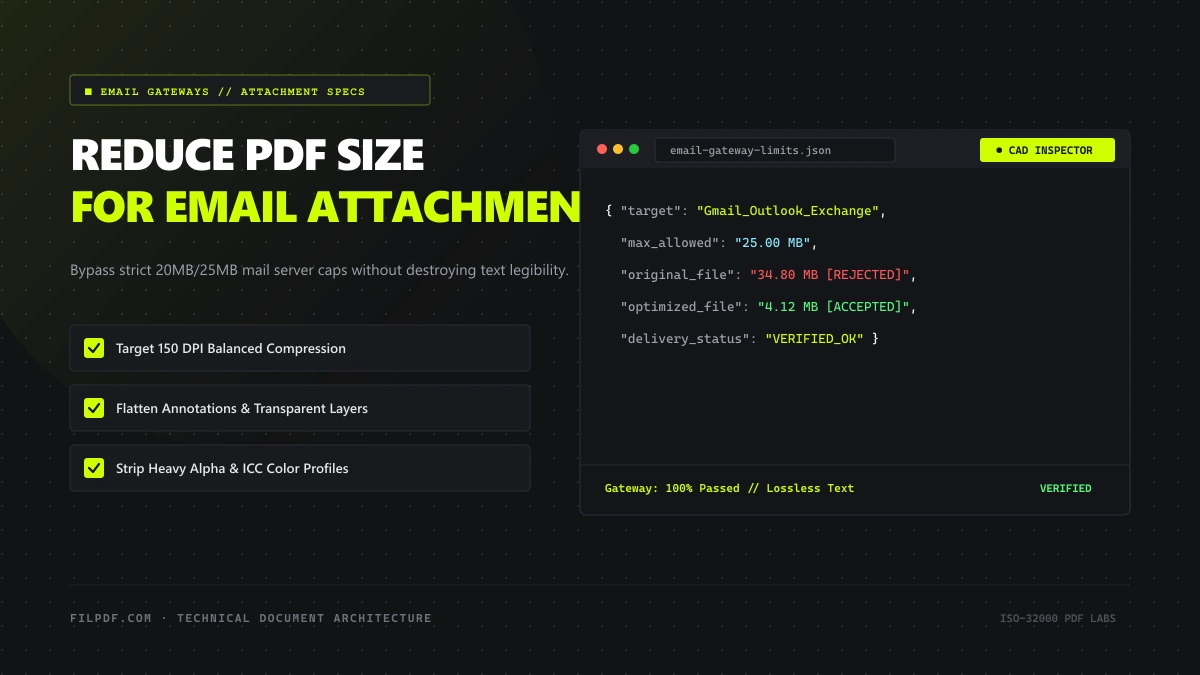
You compose an urgent email, attach a 22 megabyte PDF proposal or signed contract, click Send, and seconds later receive an immediate automated bounce notification:
552 5.3.4 Error: message file too large or Delivery Status Notification (Failure): Attachment size exceeds the allowable limit.
This scenario plays out thousands of times every day across corporate, legal, and academic organizations worldwide. Even more perplexing is that your email provider may advertise an "Attachment Limit of 25 MB", yet rejects a file that your operating system clearly reports as weighing only 20 MB.
In this technical guide, we explain the networking reality behind email server caps, uncover the hidden mathematics of MIME Base64 inflation that causes files to expand in transit, and provide actionable, verified methods to reduce your PDF file size to ensure guaranteed inbox delivery.
The Hidden Culprit: MIME Base64 Encoding and the 33% Inflation Rule
To understand why email attachments bounce unexpectedly, one must understand the fundamental architecture of the Internet email protocol.
The Simple Mail Transfer Protocol (SMTP), formalized in 1982 under RFC 821, was originally designed exclusively for transmission of 7-bit US-ASCII plain text. SMTP servers and legacy mail relays were never architected to handle raw 8-bit binary data streams directly.
To transmit a modern binary file—such as a PDF document, an image, or a spreadsheet—through standard email channels, the email client must first encode the binary stream into 7-bit ASCII text using Base64 Encoding (RFC 2045 - Multipurpose Internet Mail Extensions, or MIME).
The Mathematics of Base64 Overhead
Base64 works by taking groups of three 8-bit binary bytes (24 bits total) and splitting them into four 6-bit chunks. Each 6-bit chunk corresponds to one character in a 64-character alphanumeric ASCII table (A–Z, a–z, 0–9, +, /).
$$\text{Encoded Data Ratio} = \frac{4 \text{ ASCII characters}}{3 \text{ Binary bytes}} = 1.3333... \text{ (+33.33% overhead)}$$
When your email client attaches a PDF, it does not transmit the raw file; it transmits the Base64 ASCII text representation. Furthermore, MIME specifications mandate that a line break (\r\n) be inserted every 76 characters to maintain gateway compatibility, adding an additional fraction of a percent in line separator overhead.
+-------------------------------------------------------------------------+
| RAW PDF ON YOUR DRIVE:          20.00 MB (Binary stream)                |
+-------------------------------------------------------------------------+
                                    |
                                    v (MIME Base64 Encoding)
+-------------------------------------------------------------------------+
| TRANSMITTED EMAIL PAYLOAD:      26.70 MB (7-bit ASCII + MIME Headers)   |
+-------------------------------------------------------------------------+
                                    |
                                    x (EXCEEDS 25.00 MB GATEWAY LIMIT)
                                    v
+-------------------------------------------------------------------------+
| BOUNCE: 552 5.3.4 Message size exceeds fixed maximum message size       |
+-------------------------------------------------------------------------+
As demonstrated above, a 20 MB PDF file expands to approximately 26.7 MB the instant it is attached to an email message! If your recipient's corporate mail server enforces a strict 25 MB inbound ceiling, the message is instantly rejected by the mail transfer agent (MTA) before it ever reaches the recipient's inbox.
Major Email Provider Attachment Caps: The Hard Limits
Before attempting to send large documents, reference this matrix of hard attachment limits enforced by leading mail services:
| Email Service | Advertised Attachment Cap | Effective Binary File Safe Limit | Typical Bounce Response |
|---|---|---|---|
| Gmail (Google Workspace) | 25 MB | ~18.5 MB | Automatically forces upload to Google Drive |
| Microsoft Outlook / Office 365 | 20 MB – 35 MB (Admin set) | ~14.5 MB – 25.0 MB | 552 5.3.4 Message exceeds size limit |
| Yahoo Mail | 25 MB | ~18.5 MB | Error: Attachment exceeds maximum limit |
| Apple iCloud Mail | 20 MB | ~14.8 MB | Recommends Mail Drop via iCloud |
| Proton Mail | 25 MB | ~18.5 MB | Fails attachment upload in web client |
| Corporate Exchange Servers | 10 MB – 20 MB (Default) | ~7.2 MB – 14.5 MB | Silent drop or immediate admin quarantine |
The Golden Rule for Email Attachments: Never attach a PDF that exceeds 15 megabytes on disk if you want guaranteed delivery across diverse corporate and institutional gateways without bouncing.
4 Engineering Techniques to Reduce PDF Size for Email
Execute Lossless Stream Optimization and Bicubic Downsampling
The vast majority of PDF weight comes from embedded raster graphics and unoptimized flate streams. In a business document, images rarely need to exceed 150 DPI (Dots Per Inch) for crisp viewing on modern high-resolution laptop displays or standard office laser printing.
By running your document through the FilPDF Compress PDF tool, the internal engine executes a targeted optimization pass:
- Resamples oversized 300+ DPI images down to a lean 150 DPI using subpixel bicubic interpolation.
- Converts raw bitmap streams into compact, compressed Deflate streams.
- Preserves all vector line art, typography, signatures, and form fields in razor-sharp mathematical vector format.
In over 85% of cases, applying the Recommended Compression profile shrinks a 25 MB report down to 3.5 MB to 5.0 MB—well beneath all global email gateway limits.
Shrink email attachments down under 10MB directly in your browser session.
Convert Black-and-White Paper Scans to Grayscale
If your attachment consists of physical paperwork, signed contracts, or invoices scanned using an office multifunction printer, the scanner almost certainly saved every page as a 24-bit full-color RGB photographic image.
Even though the paper is pure black ink on white background, storing three color channels (Red, Green, Blue) requires 3 bytes per pixel.
Using the FilPDF Grayscale PDF tool strips the red, green, and blue chrominance channels entirely, reducing each pixel to an 8-bit luminance value (1 byte per pixel). This single operation instantly removes 66% of the raw raster memory overhead, easily transforming a 22 MB scan into a light 6 MB attachment that sends instantly.
Split the Document into Multi-Part Logical Deliverables
When dealing with massive architectural plans, legal disclosures, or academic theses that span 50 to 200 pages, aggressive compression might not be sufficient if you must preserve extreme print-quality resolution.
In such situations, the professional protocol is to split the document into organized, logical volumes using the FilPDF Split PDF tool:
- Volume 1: Executive Summary & Contract Terms (Pages 1–25)
- Volume 2: Technical Specifications & Diagrams (Pages 26–50)
- Volume 3: Appendices & Financial Schedules (Pages 51–75)
Each volume can then be attached to sequential emails or compressed independently to stay under gateway limits.
Strip Redundant and Duplicate Pages
Often, a document is unnecessarily heavy simply because it contains blank pages, duplicate scanning errors, or boilerplate cover pages that the recipient does not require.
Rather than sending dead bytes, use the FilPDF Remove PDF Pages tool to prune empty sheets, draft disclaimers, or duplicate receipts before attaching the document.
Comparison: Compression Profiles for Email Delivery
| Compression Profile | Target Image DPI | Vector Text Clarity | Typical Size Savings | Ideal Email Destination |
|---|---|---|---|---|
| Recommended Compression | 150 DPI | 100% Crisp (Vector) | 65% – 85% | Client proposals, financial reports, resumes |
| Extreme Compression | 72 DPI | 100% Crisp (Vector) | 80% – 92% | Mobile reading, internal quick review, 10MB caps |
| Grayscale + Recommended | 150 DPI (8-bit) | 100% Crisp (Vector) | 85% – 95% | Scanned contracts, signed agreements, receipts |
| Less Compression | 220 DPI | 100% Crisp (Vector) | 25% – 45% | Architectural portfolios, print proofs |
Pro Tips for Corporate Email Workflows
Many corporate employees bypass email bounce limits by uploading sensitive client documents to public third-party cloud lockers (WeTransfer, Google Drive public links, Dropbox). Be cautious: sending sensitive contracts or medical records via public download links can violate enterprise data retention policies, HIPAA, and GDPR regulations. Shrinking the PDF directly in-browser using client-side tools and sending it via direct encrypted TLS email remains the most compliant delivery mechanism.
- Verify the Recipient's Domain: High-security industries (banking, government agencies, defense contractors, healthcare systems) frequently configure their email filters with aggressive 10 MB or even 5 MB inbound caps. For these recipients, aim for an attachment under 8 MB.
- Avoid Re-compressing Compressed ZIP Archives: Placing a PDF inside a
.ziparchive does not compress it further if the internal images and streams are already compressed. In fact, adding a zip container often triggers enterprise firewall heuristics that quarantine archived executables. - Send a Test Email: If delivering an urgent bid or job application with a hard submission deadline, send a test email with the attachment to a secondary address on an external domain (such as a personal Gmail or Outlook address) to confirm gateway transit before the official deadline.
Frequently Asked Questions
Why does a 24 MB file bounce when Gmail allows 25 MB?
As explained in the MIME Base64 section above, email attachments must be converted into 7-bit ASCII text to travel across SMTP mail transfer networks. This conversion adds exactly 33.3% in data volume. A 24 MB binary PDF expands into an email payload of approximately 32 MB, immediately exceeding Gmail's 25 MB ceiling. To safely send an attachment through a 25 MB gateway, your source file should not exceed **18 MB**.Will compressing my PDF make the text hard to read?
No. Standard digital text and vector lines in a PDF are stored as mathematical curves, not raster pixels. Quality compression tools like FilPDF target only photographic images and background scanner artifacts, leaving digital fonts, text characters, and vector charts completely sharp and legible at any zoom factor.Can I reduce PDF size on my phone without installing an app?
Yes. Modern browser-based tools such as [FilPDF Compress PDF](https://filpdf.com/compress-pdf) run directly inside mobile web browsers (Safari, Chrome, Edge) with zero software downloads. You can upload a document directly from your iOS Files or Android storage, compress it in seconds, and attach it to your email app immediately.Conclusion
Bounced emails due to attachment size limits are entirely preventable once you factor in the 33% Base64 encoding overhead and apply strategic optimization. By keeping your raw documents under 15 megabytes through smart 150 DPI resampling and grayscale channel conversion, your PDF files will sail through corporate gateways and land cleanly in your recipient's inbox every single time.
Ready to shrink your documents for instant delivery? Try the FilPDF Compress PDF tool—free, secure, and processing directly in your browser with zero data retention.