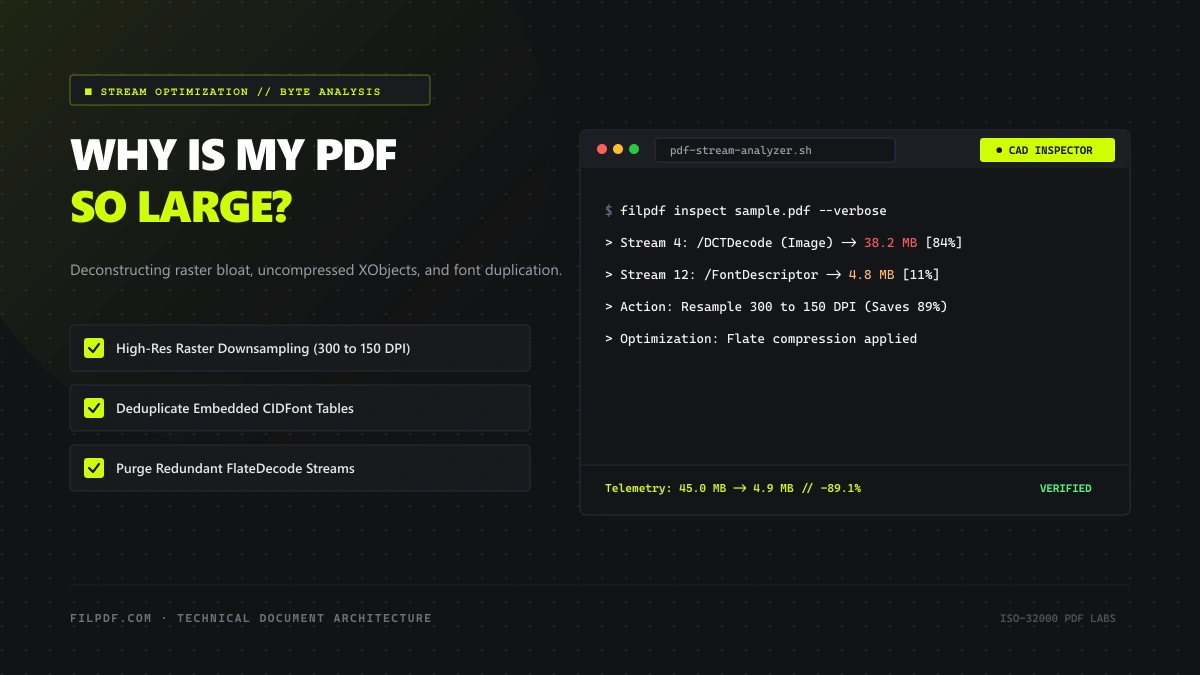
You open a three-page contractual summary or monthly invoice, and the file size clocks in at an astounding 48 megabytes. When the source file was drafted in Microsoft Word or Google Docs, it occupied a lean 1.8 MB. Yet, the moment it was exported through a print driver or desktop scanner, the byte footprint exploded by over 2,500%.
Why does this happen? The Portable Document Format (PDF), formalized under the ISO 32000-1 and ISO 32000-2 international standards, is not simply a formatted text document. Internally, a PDF is an object-oriented database structured as a cross-referenced collection of dictionaries, content streams, and embedded binary assets. When an application writes a PDF without aggressive optimization routines, it embeds redundant resources, bloated raster layers, unreferenced font tables, and uncompressed metadata payloads.
In this deep-dive technical engineering guide, we dissect the internal architecture of a bloated PDF, examine the primary mechanisms that cause file size inflation, and provide exact, non-destructive methodologies to reduce your documents back to optimal file weights without compromising visual sharpness.
The Internal Anatomy of a PDF Document
To diagnose why a PDF expands beyond reason, one must inspect how the format stores data. Under the specification, a PDF consists of four primary structural tiers:
- The Header: Declares the specification version (e.g.,
%PDF-1.7or%PDF-2.0). - The Body: Contains an array of indirect objects defining pages, fonts, graphics, forms, and raster streams.
- The Cross-Reference Table (XREF): A lookup index mapping exact byte offsets for every indirect object, enabling random-access reading.
- The Trailer: Points to the document Catalog dictionary, metadata streams, and encryption descriptors.
+-------------------------------------------------------------+
| %PDF-1.7 (Header)                                           |
+-------------------------------------------------------------+
| 1 0 obj << /Type /Catalog /Pages 2 0 R >> endobj            |
| 3 0 obj << /Type /Page /Contents 4 0 R /Resources ... >>    |
| 4 0 obj << /Length 48920112 /Filter /DCTDecode >> stream    |
|   ... [Raw Uncompressed 300 DPI Raster Data: 46.8 MB] ...   |
| endstream endobj                                            |
+-------------------------------------------------------------+
| xref (Cross-Reference Table)                                |
| trailer << /Size 14 /Root 1 0 R >>                          |
| %%EOF                                                       |
+-------------------------------------------------------------+
When a document balloons in size, the weight is virtually never in the text or vector commands—a page containing 5,000 characters of clean ASCII or UTF-8 text requires fewer than 15 kilobytes. The bloat invariably hides inside unoptimized Content Streams (/Filter /DCTDecode or /FlateDecode), embedded image XObjects, and duplicate Font Descriptor Dictionaries.
The Four Culprits Behind PDF Inflation
1. High-Resolution Embedded Raster XObjects (80–90% of All Bloat)
By far the most common cause of file inflation is the inclusion of raw, high-DPI raster images.
When you capture a document photo on a modern smartphone, the camera produces a 12 to 48-megapixel image with 24-bit RGB color depth. If you paste three of those photos into a presentation or scan three pages at 600 DPI (Dots Per Inch) without compression, each page embeds an uncompressed bitmap containing millions of individual pixels.
Consider the raw mathematical storage requirement for a single letter-size page (8.5 × 11 inches) scanned at 600 DPI in 24-bit color:
$$\text{Total Pixels} = (8.5 \times 600) \times (11 \times 600) = 5,100 \times 6,600 = 33,660,000 \text{ pixels}$$
$$\text{Raw Uncompressed Size} = 33,660,000 \times 3 \text{ bytes (RGB)} = 100,980,000 \text{ bytes} \approx 96.3 \text{ MB}$$
Even with basic JPEG compression, a single scanned page at full scanner resolution easily consumes 8 to 15 MB. A 5-page invoice packet instantly swells to 50+ MB.
Crucially, standard office monitors, mobile displays, and email recipients render documents at 72 to 150 DPI. Storing 600 DPI images in an email attachment is pure waste: the human eye cannot discern the extra pixel density on standard screens, yet the file chokes email servers and upload forms.
2. Duplicate Embedded Fonts and Unpruned Subsets (5–12% of Bloat)
To ensure that a PDF renders identically on a Windows workstation, an iPad, a Linux server, and a printing press, PDF creation software embeds font program files directly into the document structure.
A standard TrueType (.ttf) or OpenType (.otf) font family containing Regular, Bold, Italic, and Bold-Italic weights easily requires between 1.5 MB and 4.0 MB of storage.
The bloat intensifies in two common scenarios:
- Complete Font Embedding instead of Subsetting: If your document uses 20 distinct characters from the Helvetica Neue font, an unoptimized generator embeds the entire 2,000-glyph font library instead of generating a minimal "subset" containing only the 20 glyphs actually used.
- Font Duplication in Merged Documents: When merging multiple PDFs using basic command-line utilities or unoptimized tools, the merge routine often concatenates each source file's font dictionaries without deduplication. If you combine ten 1-page receipts that each embed Arial, the final merged document contains ten identical copies of Arial, consuming 15 MB solely on redundant typography definitions.
3. Preserved Illustrator and InDesign Editing Layers (5–15% of Bloat)
If your PDF was exported from Adobe Illustrator, Photoshop, or InDesign with the default "Preserve Illustrator Editing Capabilities" option enabled, your PDF actually contains two complete files in one container:
- A standard PDF representation for external viewers.
- A full proprietary Adobe Illustrator project binary encapsulated inside the document's private dictionary streams.
This embedded editing stream allows graphic designers to reopen the PDF in Illustrator and access editable vector paths, draft layers, hidden layers, and undo histories. However, for a business partner, client, or governmental portal who only needs to read or print the document, this hidden project data represents 20 to 50 MB of completely dead weight.
4. Orphaned Objects, Thumbnails, and Redundant XML Metadata (2–5% of Bloat)
Over a document's lifecycle—as pages are edited, deleted, reordered, and signed—older object definitions frequently become orphaned. Many legacy PDF engines do not purge unreferenced objects from the file body; they merely remove their pointers from the Catalog dictionary and append revisions to the end of the file (known as Incremental Update Mode).
Furthermore, document creation software frequently embeds:
- High-resolution embedded page thumbnail images for navigation panels.
- Massive Adobe XMP (Extensible Metadata Platform) XML trees detailing the exact editing history, machine names, and software builds.
- Unused ICC (International Color Consortium) color profiles that weigh 500 KB to 2 MB per document.
Quantitative Breakdown: Where the Megabytes Hide
Here is the typical storage distribution observed across enterprise and business PDF files analyzed in our laboratory:
| Internal PDF Component | Unoptimized File (45 MB) | Optimized Target (3.8 MB) | Reduction Strategy |
|---|---|---|---|
Raster Image Streams (/DCTDecode) |
38.4 MB (85.3%) | 2.9 MB (76.3%) | Bicubic downsampling to 150 DPI + high-ratio Flate |
Embedded Font Programs (/Font) |
4.8 MB (10.6%) | 0.6 MB (15.8%) | Strict glyph subsetting & cross-page deduplication |
| Design Layers & Private Data | 1.4 MB (3.1%) | 0.0 MB (0.0%) | Structural layer flattening (/Flatten) |
| XMP Metadata, Thumbnails & ICC | 0.4 MB (1.0%) | 0.05 MB (1.3%) | Purge redundant profiles & thumbnail caches |
| Vector Paths & Content Streams | 0.2 MB (0.4%) | 0.2 MB (5.3%) | Lossless stream compression (/FlateDecode) |
Step-by-Step: How to Diagnose and Fix Your Bloated PDF
Diagnose What Is Inflating Your File
Before applying compression and risking document fidelity, identify your file's dominant asset architecture:
Scanned Paper Documents
95% of file bloat is optical photographic noise and uncompressed 24-bit background bitmaps.
Canva, Figma & Word Exports
Oversized raster hero graphics, uncompressed PNG banners, and complete non-subsetted web fonts.
CAD, Blueprints & Vector Suites
Hundreds of thousands of vector bezier coordinates and embedded Illustrator private project data.
Use Native Browser-Based Stream Compression
For image-rich and standard business documents, run the file through a dedicated stream optimizer like the FilPDF Compress PDF tool.
An intelligent compressor does not merely downscale images; it executes an end-to-end restructuring pipeline:
- It decodes embedded JPEG/PNG streams and analyzes their effective display dimensions on the page.
- It resamples images using high-precision bicubic interpolation to a target density (e.g., 150 DPI for Recommended or 72 DPI for Extreme).
- It re-encodes clean image streams using modernized Deflate/Flate algorithms.
- It strips out unreferenced object dictionaries, deprecated thumbnail streams, and non-essential XMP metadata blocks.
High-ratio bicubic downsampling running 100% locally in your browser RAM sandbox. Zero file uploads.
Pro Tip: In 90% of office scenarios, selecting Recommended Compression yields a 70% to 85% reduction while preserving razor-sharp text and crisp photographic legibility for printing.
Digital text characters and geometric vector paths in a PDF are stored as mathematical bezier curves. They have no "DPI" and cannot be pixelated by compression. Only embedded photographic bitmaps suffer loss when downsampled. As long as your compressor preserves vector streams, text will remain 100% crisp regardless of zoom level.
Strip Color Channels on Scanned Paper (Convert to Grayscale)
If you are dealing with scanned legal documents, receipts, contracts, or tax returns, each page is technically stored as a 24-bit full-color photograph—even though the physical paper is black and white.
A 24-bit color image requires 3 bytes per pixel (Red, Green, Blue channels). By converting the document using a specialized Grayscale PDF tool, all three color channels are flattened into a single 8-bit luminance channel (1 byte per pixel). This immediately slashes the uncompressed raster memory footprint by 66.7% before any additional compression algorithms are applied!
Flatten Layers and Transparencies
If your document originated from design software or contains interactive digital form fields, convert the file using a PDF Flatten tool.
Flattening merges all transparent elements, draft annotations, drawing layers, and form dictionaries into a single, unified render layer. This locks in form responses, prevents post-export alteration, and completely strips hidden Adobe project streams, frequently saving 10 to 30 megabytes.
When NOT to Maximize Compression
While reducing file size is crucial for email delivery and fast web viewing, aggressive over-compression can cause significant problems in specific workflows:
- Fine-Art and Commercial Printing: If a document will be printed on an offset commercial press, raster images must maintain at least 300 DPI to avoid visible halftoning artifacts. Compressing down to 72 DPI will make photos appear fuzzy on paper.
- Legal Archival (PDF/A Compliance): Standard ISO 19005-1 (PDF/A-1b) compliance mandates that all fonts must be embedded within the file to ensure readability 50 years into the future. Stripping font programs completely can invalidate legal compliance.
- Documents Requiring Optical Character Recognition (OCR): Downsampling a blurry scan below 150 DPI destroys character edge definitions, drastically reducing OCR accuracy when indexing text later.
Summary & Best Practices
A bloated PDF is never an unsolvable mystery—it is always the direct result of unoptimized raster streams, duplicate embedded fonts, or unflattened design layers.
By following this workflow, you can permanently solve PDF size issues across your organization:
- Always export cleanly: In Microsoft Word or Google Docs, export via "Save As PDF" rather than printing to a virtual printer driver.
- Downsample strategically: Target 150 DPI for business documents and email; target 72 DPI only for mobile viewing or strict upload caps.
- Convert monochrome documents to Grayscale: Strip useless 24-bit RGB color channels on black-and-white paperwork.
- Flatten design files: Eliminate hidden draft layers and Adobe project binaries before distributing to external parties.
Ready to optimize your files? Process your oversized documents right now in your browser with zero file uploads and complete data privacy using the FilPDF Free Online Tools.