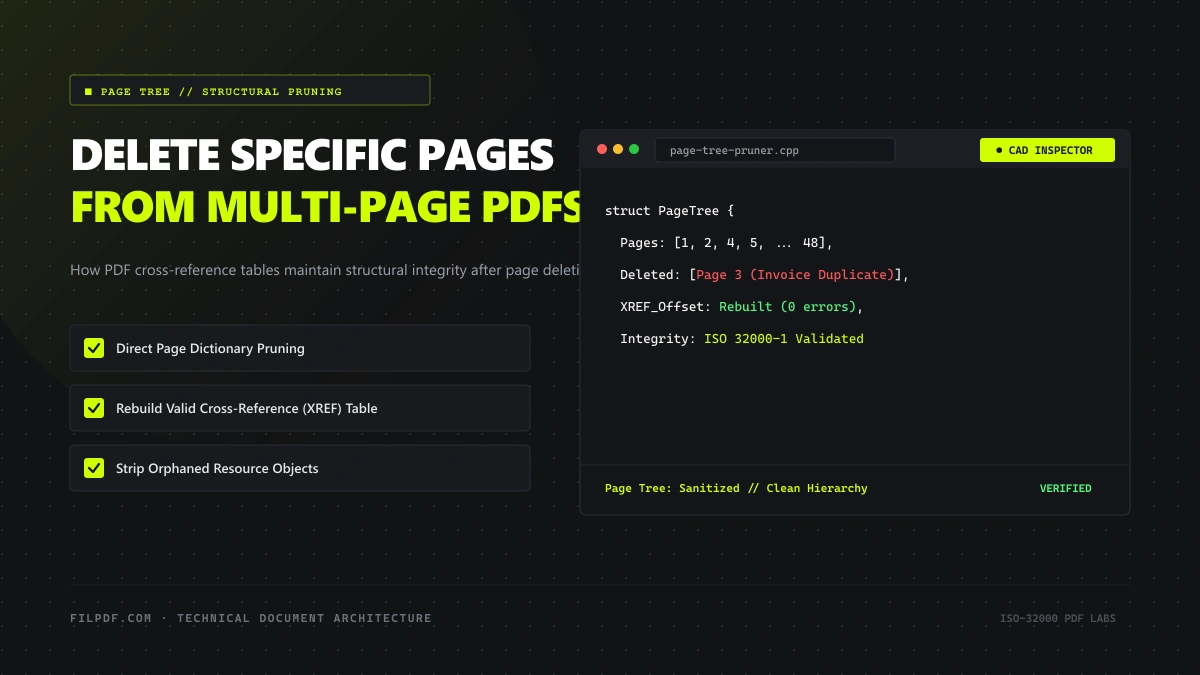
Removing an unwanted page from a Word document or text file is simple: you select the text and hit backspace. However, doing the same inside a compiled PDF document is an entirely different technical challenge.
Under the ISO 32000 specification, a PDF is not stored as a sequential roll of digital paper. It is an indexed binary database. Every page is an independent object node nested within a hierarchical Page Tree, linked together through parent-child pointers, and referenced by precise byte offsets in a master Cross-Reference (XREF) Table.
When you delete a page using crude or uncertified software, it often leaves behind "dangling pointers"—broken bookmarks, corrupted internal links, orphaned annotations, and invalid byte offsets that cause Adobe Reader or web browsers to throw critical parsing errors such as File is damaged but is being repaired or An error occurred while reading this document.
In this technical guide, we explain how PDF page trees operate under the hood, why clean structural pruning is essential, and provide exact, non-destructive steps to delete specific pages, remove blank scanner sheets, or extract exact sections while maintaining 100% document integrity.
How PDFs Manage Pages: The Internal `/Pages` Hierarchy
In the PDF internal object model, individual pages are represented by /Page dictionaries. However, these page dictionaries do not float freely; they are organized into an balanced B-tree structure governed by the Document Catalog:
                  +-----------------------+
                  | /Type /Catalog        |
                  | /Pages 2 0 R          |
                  +-----------------------+
                              |
                              v
                  +-----------------------+
                  | /Type /Pages (Root)   |
                  | /Count 3              |
                  | /Kids [3 0 R, 5 0 R]  |
                  +-----------------------+
                             / \
                            /   \
                           v     v
           +-----------------+ +-----------------+
           | /Type /Page (1) | | /Type /Page (2) |
           | /Contents 4 0 R | | /Contents 6 0 R |
           +-----------------+ +-----------------+
The Anatomy of a Page Object
Each individual page dictionary contains critical structural keys: - `/Type /Page`: Identifies the object as a renderable page. - `/Parent`: Points up to the ancestor `/Pages` tree node. - `/MediaBox`: Defines the physical dimensions of the page (e.g., `[0 0 612 792]` for standard US Letter). - `/Contents`: References the stream object containing the actual vector drawing and text rendering instructions. - `/Resources`: Dictionaries defining the fonts, images, and color spaces used specifically on that page. - `/Annots`: An array of references to comments, form fields, and digital signature widgets attached to the page.What Happens When a Page Is Improperly Deleted?
If an uncertified editing tool simply cuts out the `/Page` object without executing a full structural re-index: 1. **The `/Count` mismatch**: The parent `/Pages` dictionary still reports a page count of 3, but the `/Kids` array only contains 2 valid pointers. The PDF viewer crashes when trying to render the missing index. 2. **Orphaned Content Streams**: The page's text streams, embedded high-resolution photos, and font tables remain stranded in the file body. The page is invisible to the user, but the file size remains just as bloated as before! 3. **Broken Internal Destinations**: Bookmarks, table of contents links, and internal hyperlinks pointing to subsequent pages now point to the wrong destination or to non-existent memory addresses. 4. **XREF Table Corruption**: Deleting bytes without rebuilding the XREF table alters the relative byte positions of all subsequent objects in the file, causing legacy readers to report that the file is corrupt.Clean Structural Pruning: How Proper Page Deletion Works
A professional PDF engine, such as the FilPDF Remove PDF Pages tool, performs a comprehensive four-phase surgical operation when pruning pages:
[Phase 1: Parse Page Tree] ===> [Phase 2: Prune /Kids Array & Decrement /Count]
                                              |
[Phase 4: Rebuild XREF Table] <=== [Phase 3: Garbage-Collect Orphaned Assets]
- Parse & Map: The engine traverses the complete document tree from the Catalog down to individual
/Pageleaf nodes, recording the exact object references (obj / endobj) assigned to every page. - Prune & Decrement: It removes the target object identifier from the parent
/Kidsarray and decrements the/Countinteger across all ancestor nodes. - Garbage Collection (Dead Code Elimination): It traces all resources referenced exclusively by the deleted page (its
/Contentsstreams, unique font descriptors, and image XObjects). Any asset not shared by another surviving page is purged from the file body. - XREF Table Rebuilding: The engine serializes the modified document structure, recalculates every single object's exact starting byte offset from byte 0, and writes a clean, brand-new Cross-Reference Table and Trailer at the end of the file.
The resulting PDF is 100% compliant with ISO 32000-1, visually identical to the selected pages, and substantially lighter in total byte weight.
Step-by-Step: How to Delete Specific Pages from Your PDF
Follow these simple steps to safely delete unwanted pages from your document using your web browser:
Open the FilPDF Page Removal Tool
Navigate to the FilPDF Remove PDF Pages tool on any desktop, tablet, or smartphone browser.
Prune unneeded pages and garbage-collect unreferenced streams locally in browser memory.
Upload Your Multi-Page Document
Drag and drop your PDF into the upload area. FilPDF instantly parses the page tree directly inside your browser memory and displays high-resolution visual thumbnails of every page in your document.
Select the Pages You Want to Delete
You have two flexible options:
- Visual Click Selection: Simply hover over any thumbnail and click the Trash icon to mark that specific page for deletion.
- Page Range Entry: Enter exact page numbers or ranges in the input field (e.g.,
3, 7-9, 14).
Execute the Clean Removal
Click Remove Pages. In less than two seconds, the engine prunes the page tree, garbage-collects orphaned image streams, re-indexes the XREF table, and provides an instant download button for your clean, optimized document.
When to Use "Remove Pages" vs. "Extract Pages"
Depending on your document structure, deleting unwanted pages might be less efficient than extracting the few pages you actually need:
| Task / Objective | Optimal Tool | Why It's Faster |
|---|---|---|
| Prune 2 or 3 unwanted pages from a 20-page document | Remove PDF Pages | Faster to click 2 delete icons than to select 18 keeping pages. |
| Keep only 3 specific pages from a 100-page catalog | Extract PDF Pages | Faster to enter 1, 45, 88 and extract them into a fresh document. |
| Reorder and rearrange scrambled pages | Organize PDF Pages | Drag and drop pages into new positions with interactive live reordering. |
| Split an entire document into individual chapters | Split PDF | Automatically slices a book or binder into separate standalone PDF files. |
If you are removing a page because it contains confidential financial figures, social security numbers, or trade secrets, be aware: deleting the page removes the page from viewing, but verify that your tool garbage-collects orphaned streams. Naive editors merely hide the page while leaving the text stream embedded in the file raw code. FilPDF completely purges deleted page streams, ensuring zero data leakage.
Frequently Asked Questions
Can I delete pages from a password-protected PDF?
If a PDF is encrypted with an Owner/Permissions password that restricts page modifications, you must first unlock the document using the [FilPDF Unlock PDF tool](https://filpdf.com/unlock-pdf) before you can modify its page tree.Does deleting a page alter the page numbering on the remaining pages?
Deleting a page shifts the document's logical sequence (e.g., former page 5 becomes page 4). However, if your document has static page numbers visually printed onto the headers or footers of the physical pages, those printed numbers will not automatically re-number themselves. If you need clean, sequential numbers applied, you can use our [Add Page Numbers tool](https://filpdf.com/add-page-numbers-to-pdf) after deleting your unwanted sheets.Can I undo a page deletion if I make a mistake?
Because all processing on FilPDF executes in-memory in your local browser session, your original source file stored on your computer or phone remains 100% untouched. If you accidentally delete the wrong page, simply click **Start Over** or re-upload your source document.Conclusion
Deleting pages from a PDF is far more than a simple visual edit—it is an architectural modification of the document's internal hierarchy. By relying on precision tools that reconstruct the /Pages tree, eliminate orphaned assets, and rebuild the master XREF table, you guarantee that your pruned documents remain error-free, lightweight, and fully compliant across every PDF reader in existence.
Streamline your documents today with the FilPDF Remove PDF Pages tool—fast, free, and protected by local browser privacy.