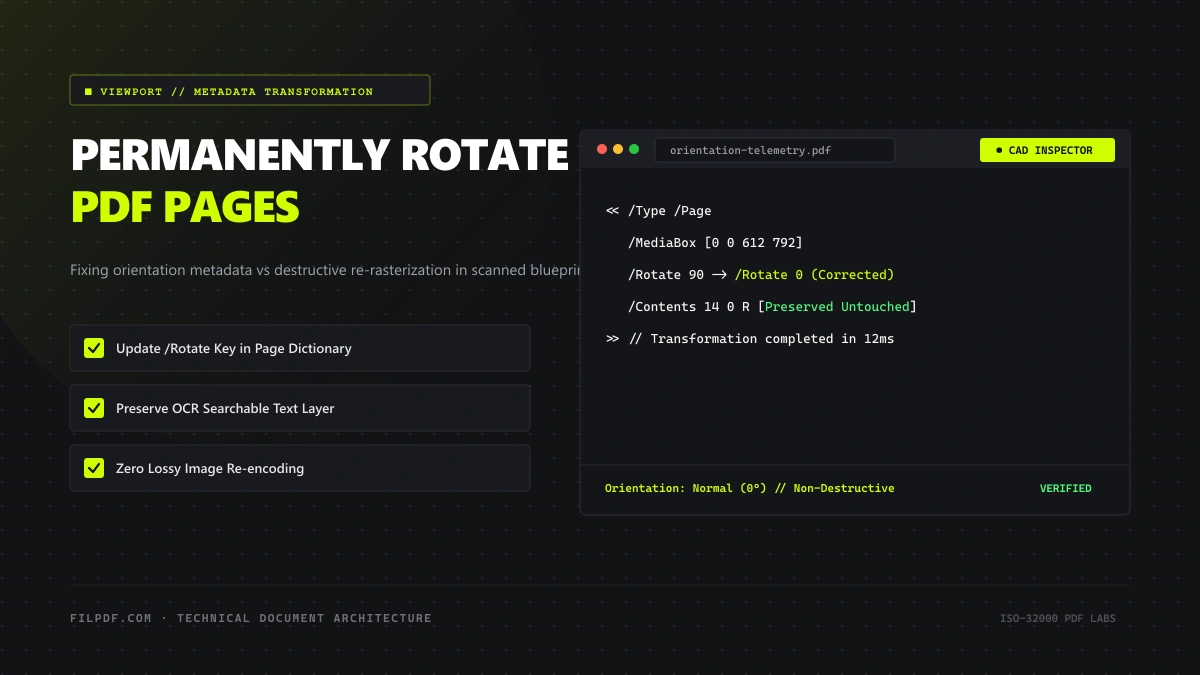
You receive a 40-page contract, medical chart, or architectural blueprint where several pages were scanned sideways or upside down. You open the file in your favorite PDF viewer or web browser, press Ctrl + Shift + + or click "Rotate Right," and the document looks perfectly oriented. You close the file, email it to your client or boss, only for them to complain that the document is still sideways!
Why didn't the rotation save? And when you use low-quality tools to rotate pages, why do your files sometimes double in size or lose their searchable text?
Under the ISO 32000 PDF specification, rotating a page can be achieved through two vastly different technical pathways: Temporary Viewport Transformations versus Permanent Metadata Dictionary Alteration.
In this engineering guide, we demystify the internal /Rotate key of PDF page dictionaries, explain why proper rotation is 100% lossless and takes milliseconds, and provide clear steps to permanently fix page orientation for individual pages or entire documents.
Why Do Scanned PDFs End Up Sideways?
Document orientation issues almost always trace back to physical paper scanning hardware:
- Automatic Document Feeders (ADF): When scanning a large stack of mixed paperwork, landscape pages (such as financial spreadsheets or legal exhibits) are frequently fed through the scanner lengthwise alongside standard portrait letters. Most scanners lack real-time OCR optical orientation sensors and simply record all pages using the physical scanner head's default portrait coordinate system.
- Smartphone Scans and EXIF Orientation: When you photograph a document using your phone, the camera records the photo's orientation inside an EXIF metadata tag (e.g.,
Orientation: 6 (Rotate 90 CW)). When basic apps stitch those photos into a PDF, they frequently ignore the EXIF flag, resulting in raw sideways images embedded in standard portrait PDF page containers. - Landscape Spreadsheets in Portrait Binders: When exporting reports containing wide Excel sheets, unconfigured virtual print drivers often crush wide tables onto a 90-degree rotated portrait page to force them onto an 8.5 × 11-inch canvas.
The Internal Mechanics: Viewport Rotation vs. Permanent Dictionary Rotation
To ensure your rotations persist across every device, software reader, and printing press, you must understand where the rotation instruction is stored.
+-----------------------------------------------------------------------------------+
| 1. TEMPORARY VIEW ROTATION (In Adobe Reader, Chrome, Edge)                        |
|    - User presses Ctrl + Shift + +                                                |
|    - Software viewer merely rotates its local GPU rendering canvas                |
|    - NO CHANGES ARE WRITTEN TO THE PDF FILE ON DISK                               |
|    - When closed and reopened: Reverts immediately to sideways!                   |
+-----------------------------------------------------------------------------------+
| 2. PERMANENT DICTIONARY ROTATION (FilPDF Standard)                                |
|    - Engine writes `/Rotate 90` directly into the target `/Page` object dictionary |
|    - 100% NON-DESTRUCTIVE: Zero image re-encoding, zero text distortion           |
|    - Permanent: Renders correctly in all PDF viewers forever!                     |
+-----------------------------------------------------------------------------------+
The `/Rotate` Key in the `/Page` Object
Under the PDF specification, every page object dictionary (`/Type /Page`) accepts an optional integer key named **`/Rotate`**.The value of the /Rotate key must be an integer multiple of 90:
/Rotate 0: Standard upright orientation (default)./Rotate 90: Rotated 90 degrees clockwise./Rotate 180: Rotated upside down./Rotate 270: Rotated 270 degrees clockwise (90 degrees counter-clockwise).
Here is what an actual page object looks like inside the raw PDF binary:
12 0 obj
<<
  /Type /Page
  /Parent 3 0 R
  /MediaBox [0 0 612 792]
  /Rotate 90
  /Contents 14 0 R
  /Resources << /Font << /F1 15 0 R >> >>
>>
endobj
When a compliant viewer opens this object, its rendering engine reads /Rotate 90 and automatically rotates the coordinate transformation matrix (CTM) prior to painting the content stream.
Why Proper Rotation is 100% Lossless and Instantaneous
Notice what is NOT changed when modifying the `/Rotate` key: - **The `/Contents` stream is completely untouched.** The underlying vector text, font coordinates, and embedded images are not re-encoded, re-compressed, or altered in any way. - **OCR Searchable Text Remains 100% Intact.** Because the text stream is unmodified, character search indexes and copy-paste capabilities continue to function with mathematical perfection. - **Zero Generation Loss.** Unlike converting an image from PNG to JPEG, updating an integer key from `0` to `90` causes zero loss in image sharpness. - **Execution Speed**: The operation takes less than **15 milliseconds** because it only involves modifying a single line of text in an object dictionary!Many users attempt to save a rotated PDF by rotating it in their web browser and choosing "Print to PDF". This is extremely destructive! Printing to PDF converts rich digital vector text into flattened raster images, destroys all clickable hyperlinks, strips PDF bookmarks, removes digital signatures, and inflates the file size by 500% to 1,000%. Always use a true metadata rotation tool like FilPDF instead.
Step-by-Step: How to Permanently Rotate PDF Pages
Whether you need to fix a single upside-down page or correct an entire hundred-page document, follow this simple browser-based workflow:
Open the FilPDF Rotation Tool
Navigate to the FilPDF Rotate PDF Pages tool in your desktop or mobile browser.
Lossless metadata dictionary reorientation running 100% in local browser memory.
Upload Your PDF
Drag and drop your file into the tool. FilPDF reads the document instantly into browser memory and displays visual preview thumbnails of every page.
Select Your Rotation Targets
You have complete granular control:
- Rotate All Pages: Click the global Rotate All Right or Rotate All Left buttons in the top toolbar to rotate every page in the document by 90 degrees simultaneously.
- Rotate Individual Pages: Hover over any specific thumbnail and click the individual circular rotation icons (
⟳or⟲) to reorient only the pages that require adjustment.
Save and Download Your Permanent Document
Click Apply Rotation. In less than two seconds, the engine updates the /Rotate keys across all target page dictionaries, serializes the updated XREF table, and provides an immediate download button for your permanently oriented file.
Specialized Scenarios: Handling Mixed Orientation Documents
1. Architectural Schematics and Engineering Blueprints
Architectural packages often contain 20 portrait specification sheets interspersed with three massive 24 × 36-inch (Arch D) landscape floorplans.When exporting these packages, you should never rotate the landscape schematics to portrait—doing so shrinks the schematic and makes scale measurements unreadable. Instead, ensure the portrait sheets have /Rotate 0 and the schematics have /Rotate 0 with their natural landscape /MediaBox [0 0 2592 1728].
2. Legal Transcripts and Scanned Depositions
Court reporters frequently scan legal exhibits in duplex (double-sided) mode. If the back sides of the pages were fed upside down through the scanner, use FilPDF to select only the even-numbered pages (`2, 4, 6, 8...`) and rotate them 180 degrees in a single click.Frequently Asked Questions
Why does my PDF rotate in Adobe Reader but revert when I email it?
Because clicking the rotate tool on Adobe Reader's standard toolbar only alters the temporary screen viewport for your current reading session. To permanently bake the rotation into the file, you must use a structural tool like [FilPDF Rotate PDF Pages](https://filpdf.com/rotate-pdf-pages) that commits the `/Rotate` value to the document's internal metadata.Does rotating a PDF reduce its quality or resolution?
Not when using FilPDF. Because our engine operates at the metadata dictionary layer, it modifies only the orientation matrix tag without re-encoding the photographic or vector streams. Your document retains 100% of its original resolution, DPI, and clarity.Can I rotate specific pages and delete others at the same time?
Yes! If you need to reorder, delete, and rotate pages in a single integrated workflow, use our [Organize PDF Pages tool](https://filpdf.com/organize-pdf-pages). It provides a full interactive visual lightbox where you can drag to reorder, rotate thumbnails, and delete unwanted sheets before generating your final file.Conclusion
Fixing a sideways or upside-down PDF should never require complicated software, costly Adobe Acrobat subscriptions, or destructive "Print to PDF" workarounds that destroy text sharpness. By taking advantage of the native ISO 32000 /Rotate dictionary key, you can permanently correct page orientation in seconds while preserving 100% of your document's original quality, formatting, and searchable text layers.
Fix your document orientations right now with the FilPDF Rotate PDF Pages tool—fast, permanent, and processed securely directly within your browser.