A corporate accounting team finalizes a vendor contract, signs the document with a digital signature stamp, and transmits the signed PDF to the bank for an urgent wire transfer. An hour later, the bank rejects the wire: the compliance officer printed the document, and the signature line on the physical paper was completely blank.
In another instance, an HR manager emails an employment agreement with pre-filled compensation numbers in editable form fields. The prospective hire opens the PDF in their browser, changes their signing bonus from $5,000 to $25,000, and returns the file signed. Because the form fields were never locked, the document was altered without leaving an obvious visual trace.
Both scenarios stem from a fundamental misunderstanding of PDF graphics architecture: the separation between static page content streams and floating interactive annotations.
In this technical masterclass, we explore the internal anatomy of interactive PDF forms, deconstruct why unflattened signatures vanish on printers and mobile devices, and explain how to permanently freeze form layers into immutable, tamper-proof vector streams.
The Dual-Layer Architecture: `/Contents` vs. `/Annots`
Under the ISO 32000 specification, a PDF page is not a unified digital canvas. It consists of two fundamentally distinct structural systems that sit on top of one another:
+-------------------------------------------------------------+
| LAYER 2: The Interactive Annotation Layer (/Annots)         |
| • AcroForm Text Fields (/Tx) & Checkboxes (/Btn)            |
| • Digital Signature Appearance Dictionaries (/Sig)          |
| • Sticky Notes, Highlights, and Freehand Ink Annotations   |
+-------------------------------------------------------------+
                              ▲
                              │ (Floating on top of)
+-------------------------------------------------------------+
| LAYER 1: The Static Page Content Stream (/Contents)        |
| • Fixed Typographic Glyphs (BT ... ET)                      |
| • Immutable Vector Drawing Paths (re, m, l, f)              |
| • Permanent Background Raster Images (Do)                   |
+-------------------------------------------------------------+
1. The Static Content Stream (`/Contents`)
This is the foundational bedrock of the PDF page. It contains low-level PostScript-like drawing operators that describe geometric lines, curves, background fills, and typography. Once written, these elements cannot be edited by end users simply clicking on them in standard viewers.2. The Interactive Annotation Array (`/Annots`)
Form fields (AcroForms), digital signatures, sticky note comments, and highlight markers do **not** live in the `/Contents` stream.Instead, they exist as an array of independent indirect objects referenced in the page dictionary:
3 0 obj
<<
  /Type /Page
  /Parent 2 0 R
  /Contents 4 0 R
  /Annots [ 8 0 R  9 0 R ]  <-- Array of Floating Annotation Objects
>>
endobj
Object 8 0 obj might define an interactive form input widget:
8 0 obj
<<
  /Type /Annot
  /Subtype /Widget
  /FT /Tx                   <-- Form Type: Text Input
  /T (EmployeeSalary)       <-- Field Name Identifier
  /V ($125,000)             <-- Field Value (Editable!)
  /Rect [ 120 400 260 420 ] <-- Floating Coordinate Bounding Box
  /AP << /N 10 0 R >>       <-- Appearance Stream
>>
endobj
Because this widget is floating inside /Annots, it is subject to real-time client software interpretation. It can be clicked, modified, cleared, or hidden by user actions.
3 Fatal Risks of Sharing Unflattened PDFs
Enterprise office printers and mobile print spoolers frequently process only the base /Contents stream, ignoring the floating /Annots layer. As a result, critical signatures and approvals fail to print.
Unflattened AcroForm fields remain fully active. Any recipient with a web browser can modify pre-filled contract terms, payment routing numbers, or dates before re-saving the file.
Lightweight mobile PDF engines (iOS Safari, Android QuickOffice) frequently drop support for complex appearance streams (/AP), rendering completed forms completely blank on smartphones.
What Does "Flattening" Actually Do Under the Hood?
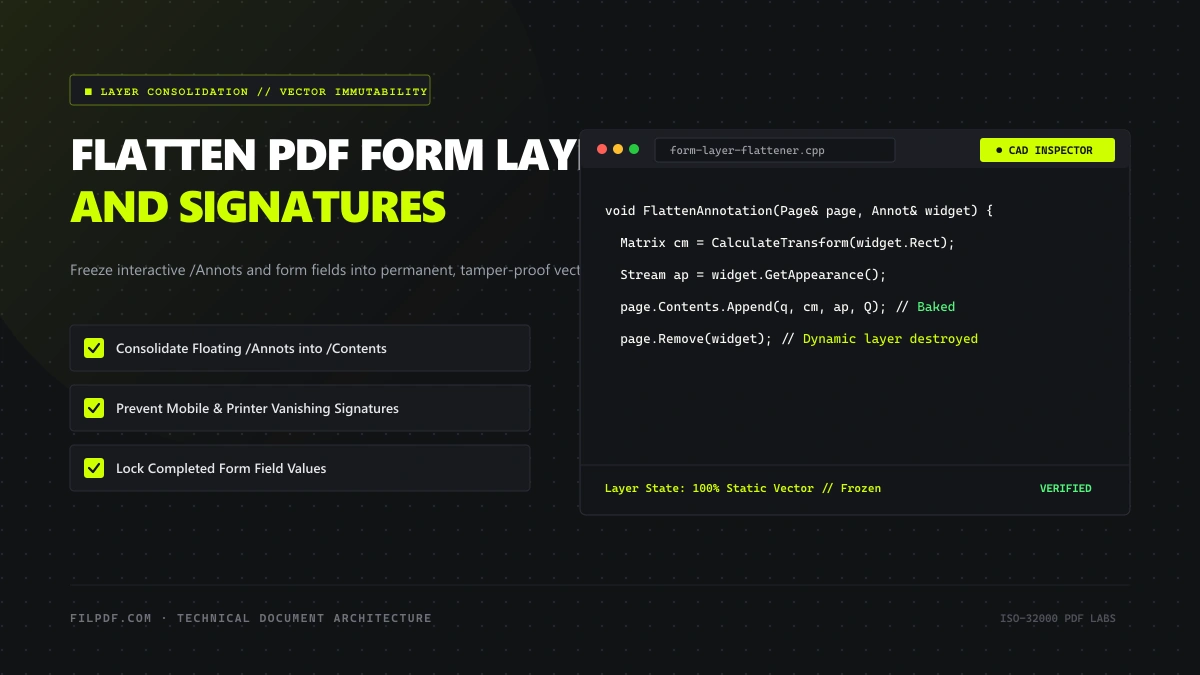
Flattening a PDF is a non-destructive mathematical consolidation routine that merges floating annotations directly into the permanent graphics stream.
[Unflattened PDF: Page + /Annots]
                │
                ▼
[Step 1: Extract Appearance Streams (/AP)]
                │ ──> Read exact vector graphics of each widget
                ▼
[Step 2: Coordinate Matrix Transformation]
                │ ──> Map /Rect [x, y] to page coordinate matrix (cm)
                ▼
[Step 3: Append Drawing Operators to /Contents]
                │ ──> "Bake" signatures & text into permanent vectors
                ▼
[Step 4: Purge /Annots Array & /AcroForm Dictionary]
                │ ──> Delete floating widgets from page tree
                ▼
[Flattened Immutable Document: 100% Static /Contents]
1. Extracting the Appearance Stream (`/AP`)
Every compliant annotation dictionary contains an Appearance Dictionary (`/AP`) pointing to a normal appearance sub-stream (`/N`). This stream contains the exact vector drawing commands required to render the filled text, checkbox checkmarks, or digital signature stamps.2. Coordinate Matrix Transformation (`cm`)
The flattening engine reads the bounding box coordinates (`/Rect [llx lly urx ury]`) of each widget. It calculates a coordinate transformation matrix (`cm`) to position the appearance stream at the exact pixel-perfect location on the underlying page canvas.3. Merging into `/Contents`
The engine wraps the appearance stream inside graphics state save and restore operators (`q` and `Q`), then appends it directly to the end of the page's `/Contents` stream:q % Push graphics state
1 0 0 1 120 400 cm % Translate to widget coordinates
BT /F1 12 Tf (Signed: J. Doe) Tj ET % Render signature characters
Q % Pop graphics state
4. Purging the Annotation and Form Tree
Finally, the engine strips the indirect object references from the page's `/Annots` array and removes the root `/AcroForm` pointer from the document Catalog.The signatures and filled text remain 100% visually identical, but they are now permanent vector lines and typographic glyphs. They can never be cleared, modified, or dropped by a print spooler.
Vector Flattening vs. Destructive Bitmap Rasterization
Not all flattening methods are created equal. It is vital to distinguish between high-precision vector flattening and crude raster flattening:
| Flattening Metric | Crude Raster Flattening ("Print to Image") | FilPDF Native Vector Flattening |
|---|---|---|
| Rendering Methodology | Converts entire page into a 72–150 DPI bitmap | Preserves all mathematical bezier curves & vectors |
| Typography Sharpness | Fuzzy, blurry, pixelated text when zooming | 100% Razor-sharp vector typography at any zoom |
| Text Searchability | Text is destroyed; cannot press Ctrl+F |
100% Selectable and searchable Unicode text |
| File Size Impact | Explodes file size (often 10 MB to 50 MB) | Lightweight; often reduces file footprint |
| Color Fidelity | Halftoning artifacts and color compression | Pure device-independent color preservation |
Crude tools "flatten" documents by converting each page into a flattened image, ruining file sizes and destroying accessibility.
FilPDF executes true Vector Mathematical Flattening, preserving crisp typography, razor-sharp vector line art, and full text searchability while locking down security.
Step-by-Step: How to Flatten PDFs on FilPDF
To lock in digital signatures, secure filled tax forms, and ensure flawless printing across all office devices, follow this workflow:
Load Document into In-Browser Sandbox
Navigate to the FilPDF Flatten PDF tool. Drop your interactive document into the workspace.
FilPDF processes your file entirely inside your local browser memory using client-side WebAssembly. No sensitive financial forms or legal contracts are uploaded to external cloud servers.
Bake interactive form fields, annotations, and signature widgets into permanent vector drawing streams.
Execute Vector Layer Consolidation
Click Flatten PDF. The FilPDF engine parses all page objects, extracts the visual appearance streams of every annotation, calculates coordinate matrices, and injects them into the base /Contents stream.
The floating /Annots array and /AcroForm catalog entries are permanently purged.
Rebuild Cross-Reference Index & Export
The engine writes a clean, consolidated cross-reference (xref) table, stripping all orphaned form metadata. The exported file is instantly downloadable, fully stabilized, and immutable.
Optional: Merge Multiple Flattened Documents
If you are compiling a multi-part contractual agreement or real estate closing package, flatten each source document first, then combine them using our FilPDF Merge PDF tool.
Merging pre-flattened files prevents form field naming collisions (where fields with identical names in different documents overwrite each other's data). Read our technical guide on how to merge PDFs without losing outlines or hyperlinks to master this pipeline.
Flattening is a mandatory pre-requisite for certified long-term archival. The international standard for electronic archiving (PDF/A) strictly forbids dynamic form fields and unanchored interactive annotations.
For complete specifications on archival compliance, review our architectural guide on The Definitive PDF/A Compliance Guide: PDF/A-1b vs. PDF/A-2b.
Summary & Best Practices
Interactive PDF form fields are indispensable for collecting information, but they are a liability for final distribution and long-term storage.
By flattening your documents before sending:
- You ensure that 100% of signatures, stamps, and annotations print accurately on all physical printers.
- You guarantee flawless visual rendering across all mobile devices and operating systems.
- You eliminate the risk of recipients altering contract values or filled form data.
- You prepare your documents for strict ISO 19005 (PDF/A) archival certification.
Freeze your form fields into permanent, tamper-proof vector streams in seconds using FilPDF Flatten PDF.