You spend days authoring a 150-page annual corporate report. It contains an executive summary, seven financial chapters, an interactive Table of Contents, and hundreds of internal hyperlinks connecting footnotes to appendices.
Your colleague sends you a 20-page auditor's certification to append to the end. You open a generic free online PDF merger, combine the two files, and download the merged document.
Then you click on Chapter 4 in your Table of Contents—and your PDF viewer jumps to a blank page in Chapter 2. You look at your sidebar: the entire nested Bookmark Outline Tree has been wiped clean. In its place is a flat, unorganized list of generic labels, or worse, no navigation tree at all.
What went wrong?
Merging PDF documents is not simple binary file concatenation. You cannot simply stitch two PDF byte streams together like two video clips.
A PDF is an object-oriented relational database governed by rigid structural trees. When you merge documents, an intelligent engine must mathematically re-index the Page Tree, rewrite Destination pointers (/Dest), graft the Outlines hierarchy (/Outlines), and resolve Font and Form namespace collisions.
In this technical masterclass, we explore the internal architecture of PDF navigation trees, deconstruct why naive combiners corrupt document structure, and demonstrate the definitive workflow to merge complex multi-file publications while preserving 100% of your bookmarks, hyperlinks, and page indices.
Inside the PDF Navigation Architecture: The `/Outlines` Tree
To understand why bookmarks disappear or break during merging, one must inspect how the PDF specification (ISO 32000-1) represents navigation.
In a PDF, the interactive sidebar bookmarks you click on do not live on the pages themselves. They live in a hierarchical doubly-linked tree anchored to the document Catalog dictionary by the /Outlines key:
[Document Catalog]
       │
       ▼
[/Outlines (Root Outline Dictionary)]
       │
       ├──> [/First: Bookmark Item 1 ("Executive Summary")]
       │         │
       │         ├──> [/Next: Bookmark Item 2 ("Financial Audits")]
       │         │         │
       │         │         ├──> [/First Child: Subsection 2.1 ("Balance Sheet")]
       │         │         │
       │         │         └──> [/Next: Bookmark Item 3 ("Appendices")]
Let us examine what an individual bookmark object looks like under the hood:
14 0 obj
<<
  /Title (Chapter 3: Capital Expenditure)
  /Parent 10 0 R           <-- Pointer to Parent Outline Node
  /Prev 13 0 R             <-- Pointer to Previous Sibling
  /Next 15 0 R             <-- Pointer to Next Sibling
  /Dest [ 24 0 R /XYZ 72 750 null ] <-- Target Page Object & Coordinates
>>
endobj
The Vulnerability: Indirect Page Pointers (`/Dest`)
Notice the `/Dest` (Destination) entry. It does **not** say `"Go to Page 45"`.Instead, it contains an indirect reference to a physical page object: [ 24 0 R /XYZ 72 750 null ], which instructs the viewer:
"Navigate to the object registered at index 24 0 R, position the viewport at horizontal coordinate 72, vertical coordinate 750, and retain the current zoom level."
When you merge Document B onto the end of Document A, every single page object in Document B is renumbered to prevent object ID collisions. If the merger engine fails to recalculate and update the destination array in every bookmark dictionary, the links point to orphaned objects or wrong pages!
3 Catastrophic Failures of Naive PDF Combiners
To avoid the complex math of grafting linked-list trees, crude combiners simply drop the /Outlines dictionary entirely. The resulting file loses 100% of its interactive navigation sidebar.
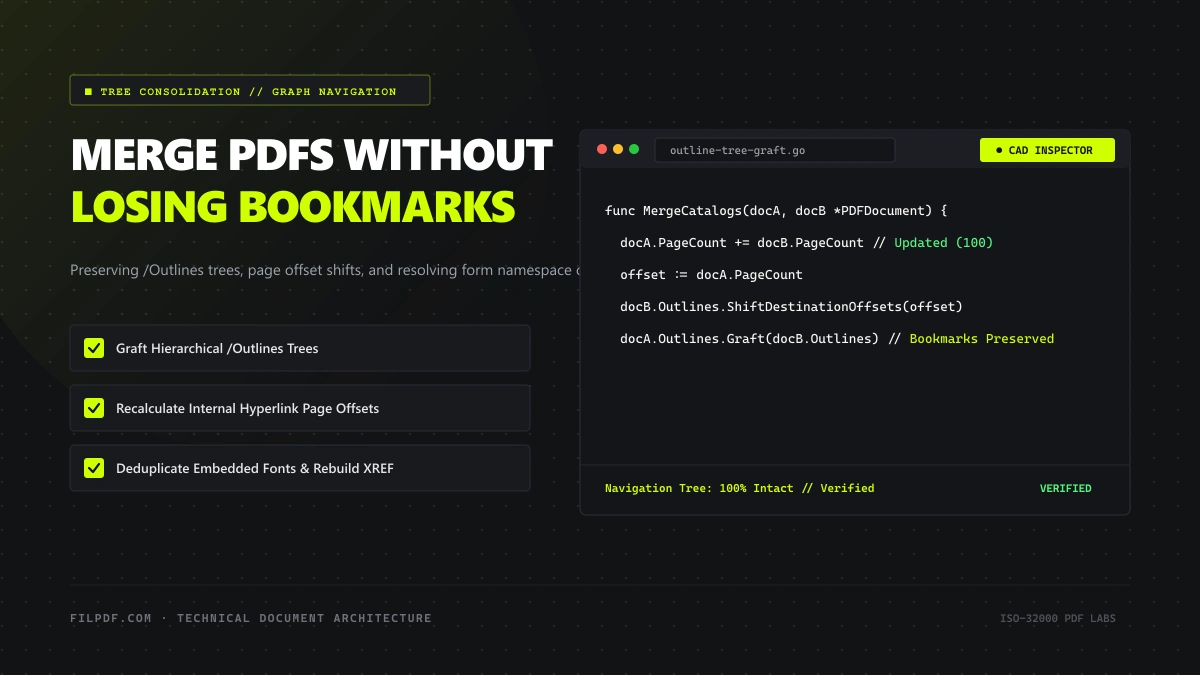
If Document A is 30 pages long, page 1 of Document B becomes page 31. Cheap tools fail to apply this +30 offset to internal link annotations (/Link), causing cross-reference hyperlinks to jump to wrong chapters.
If two contracts each contain an interactive form field named "SignatureDate", merging them without namespace isolation merges the fields into one! Typing a date on page 2 automatically overwrites page 40.
What Happens During a True Architectural PDF Merge?
An industrial-grade PDF merger does not simply append bytes. It executes a comprehensive five-stage graph reconciliation pipeline:
[Document A: 40 Pages] + [Document B: 60 Pages]
                    │
                    ▼
[Stage 1: Object ID Renumbering & Cross-Reference Mapping]
                    │ ──> Shift Document B objects by Document A size
                    ▼
[Stage 2: Page Tree Consolidation (/Pages)]
                    │ ──> Recalculate /Count (40 + 60 = 100) & update /Kids
                    ▼
[Stage 3: Outlines Tree Grafting]
                    │ ──> Link Doc B outlines as sibling or child tree
                    ▼
[Stage 4: Destination Coordinate Offset Shifting]
                    │ ──> Rewrite all /Dest pointers to reflect new page index
                    ▼
[Stage 5: Font & Form Namespace Isolation]
                    │ ──> Deduplicate fonts & isolate identical /AcroForm fields
                    ▼
[Unified 100-Page Master Document with Flawless Navigation]
1. Page Tree Recalculation (`/Pages`)
Under ISO 32000, pages in a PDF are organized into a balanced B-tree. The root `/Pages` object contains a `/Count` integer and a `/Kids` array pointing to child page nodes.When merging Document A (/Count 40) and Document B (/Count 60):
- The merger updates the master
/Countto100. - It recalculates the
/Kidsarray, preserving sequential rendering. - It updates the
/Parentpointer of every page in Document B to point to the new unified root.
2. Grafting the `/Outlines` Tree
To preserve both documents' navigation structures: - The engine creates a master `/Outlines` root dictionary. - It links the first bookmark of Document A to `/First` and the last bookmark of Document B to `/Last`. - It creates a bridge pointer connecting the last node of Document A's outline (`/Next`) to the first node of Document B's outline (`/Prev`). - All nested sub-levels (chapters, subheadings) are preserved in their exact hierarchical tree depth.3. Hyperlink Offset Transformation
Every interactive cross-reference link on a page lives inside an annotation dictionary with `/Subtype /Link`.The engine inspects every link's action dictionary (/A << /S /GoTo /D ... >>). For links originating in Document B, the engine shifts their target destinations by the exact page count of Document A, ensuring that clicking "See Appendix B" lands precisely on the intended appendix.
4. Resolving Form Field Clashes
To prevent form field values from bleeding across pages, an enterprise merger checks if either document contains interactive AcroForm fields.If field collisions exist, the engine either scopes the field names with unique prefixes (e.g., DocA.SignatureDate vs. DocB.SignatureDate) or prompts you to flatten the interactive fields into static vectors using our verified PDF Flatten tool prior to merging.
Comparison: Crude Combiner vs. FilPDF Architectural Merge
| Feature | Primitive Online Combiner | FilPDF Enterprise Merge Engine |
|---|---|---|
| Bookmark Hierarchy | ❌ Completely Destroyed or flattened | ✅ 100% Preserved & Grafted |
| Internal Hyperlinks | ❌ Jump to wrong pages or break | ✅ Mathematically Re-indexed |
| Page Tree Structure | ⚠️ Corrupted cross-reference tables | ✅ Strict ISO 32000-1 Compliance |
| Form Field Values | ❌ Data overwritten on name clash | ✅ Namespace Isolation / Auto-Flatten |
| Document Processing | ❌ Files uploaded to unknown servers | ✅ 100% In-Browser WebAssembly RAM |
| Speed | ⚠️ Slow upload/download bottlenecks | ✅ Instant Client-Side Execution |
Step-by-Step: Merging Complex PDFs with FilPDF
To combine multi-part legal briefs, technical specifications, or corporate reports while preserving all bookmarks and navigation paths, follow this workflow:
Load Source Documents into Browser Memory
Navigate to the FilPDF Merge PDF tool. Drag and drop your source documents into the workspace.
FilPDF processes your files entirely inside your browser's local WebAssembly sandbox. Your confidential business contracts and proprietary manuals are never transmitted to third-party cloud servers.
Merge multi-part files with full bookmark tree grafting, internal hyperlink offset shifting, and clean XREF table compilation.
Arrange Document Sequence & Page Flow
Drag and drop document cards to define the exact assembly order (e.g., Cover Page → Executive Summary → Financials → Legal Addenda).
If you need to reorder individual pages or remove blank separator sheets before merging, use our companion FilPDF Organize PDF Pages tool. Review our detailed technical guides on how to delete specific pages from PDFs and how to rotate pages permanently.
Execute Graph Consolidation & Export
Click Merge PDF. The FilPDF engine executes the five-stage consolidation pipeline:
- It renumbers all indirect objects, updating internal byte pointers.
- It rebuilds the
/PagesB-tree, updating the master/Count. - It grafts the
/Outlinestrees together, linking the document bookmark hierarchies into a unified navigational index. - It shifts all annotation destination coordinates to match the new global page numbers.
- It compiles an optimized cross-reference table (
xref) for instantaneous document opening.
Optional: Lock Dynamic Form Fields
If your merged publication includes signed forms or interactive invoice receipts, run the finalized file through our FilPDF Flatten PDF tool.
Flattening merges all form inputs into permanent vector drawing commands, ensuring that recipients cannot tamper with values and guaranteeing that all pages print identically across all office hardware. For architectural details, consult our guide on how to flatten PDF form layers for archiving.
If you only need specific chapters from a massive 500-page manual, do not merge the entire file and manually delete pages.
First, use our FilPDF Split PDF tool to extract only the relevant chapter page range. Then merge the lean extracted file into your master report. This prevents unnecessary font bloat and keeps your final document fast and responsive.
Summary & Publishing Checklist
A professional multi-document publication should feel like a single, cohesive masterwork—not a loose collection of stitched fragments with broken links and missing menus.
Before distributing your next merged publication, verify these three quality checkpoints:
- Test the Bookmark Sidebar: Open the merged PDF in a viewer and expand the outline tree. Verify that all chapters and sub-sections from each source file appear in the correct hierarchy.
- Audit Cross-Reference Hyperlinks: Click internal links (such as table of contents entries or index citations) to confirm they navigate to the correct post-merge page.
- Check Form Field Integrity: Ensure that pre-filled form fields have not overwritten each other or disappeared.
Achieve flawless, professional document combination directly in your browser with complete privacy using FilPDF Merge PDF.