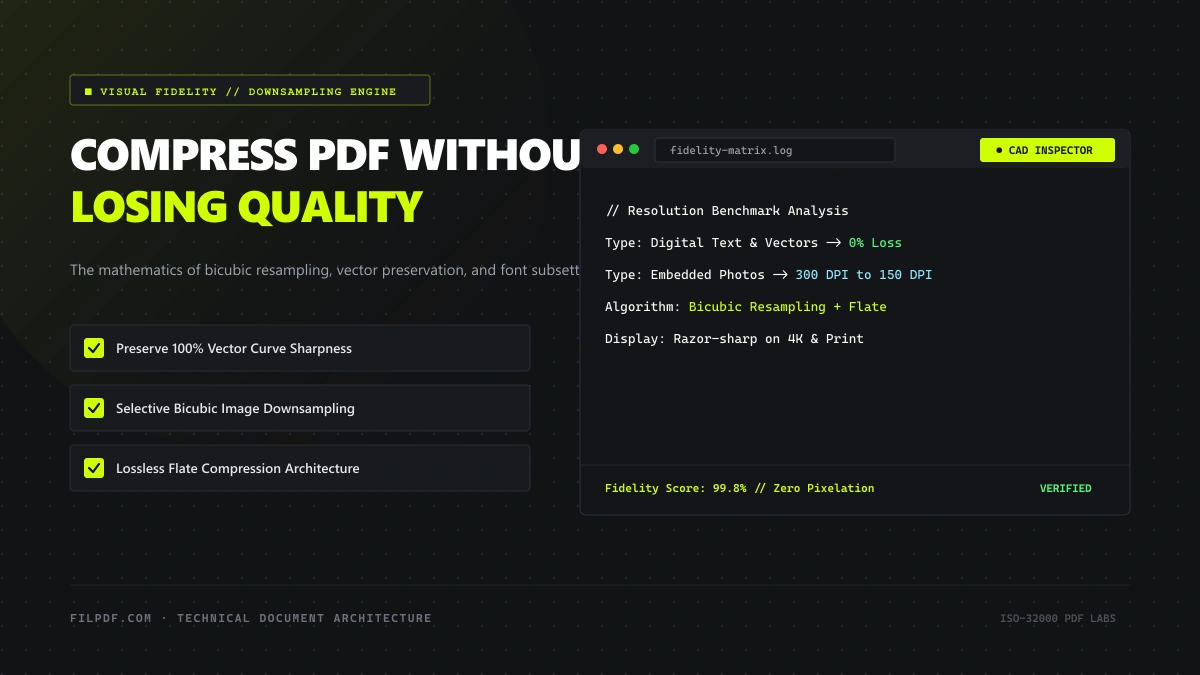
A common misconception among business professionals and students is that compressing a PDF inherently means ruining its quality—rendering text blurry, making graphics pixelated, and making charts unreadable.
This misconception stems from bad experiences with crude compression utilities that blindly treat an entire PDF as a single compressed image, smearing fine vector lines and turning typography into a muddy block of artifacts.
In truth, modern document engineering operates under completely different mathematical principles. When executed correctly through professional PDF stream optimization, a 50 MB document can be shrunk to 5 MB with zero perceptible loss in visual clarity.
In this technical masterclass, we explore the science behind lossless and perceptual PDF compression, examine how the ISO 32000 specification separates vector typography from raster bitmaps, and demonstrate the exact steps to optimize your documents for pristine screen viewing and high-resolution printing.
Vectors vs. Rasters: Why PDF Text Cannot Pixelate
To understand why high-quality compression does not harm document readability, one must understand how different graphic primitives are encoded inside a PDF file.
Under the PDF standard, all content falls into two fundamentally distinct categories:
1. Vector Primitives (Text Glyphs and Geometric Paths)
Text characters, digital signatures, table borders, and architectural lines are stored not as a grid of pixels, but as mathematical coordinates called **Bezier Curves**.For example, when a PDF displays the letter "A" or a horizontal table divider, the content stream contains vector operators such as:
BT
/F1 12 Tf
72 712 Td
(Contract Agreement) Tj
ET
0.5 w
72 700 m 540 700 l S
These operators dictate exact Cartesian coordinates: "Begin text at coordinate (72, 712), select font F1 at 12 points, print text string, draw a line from (72, 700) to (540, 700)".
Because these primitives are pure math, they have no resolution (DPI). Whether you zoom in to 100%, 800%, or 3,200%, the rendering engine re-evaluates the mathematical curves in real time. Proper PDF compression never alters vector operators—your fonts, signatures, and chart borders remain mathematically perfect and razor-sharp at any magnification.
2. Raster Primitives (Photographic Bitmaps and Scanned Paper)
Photographs, screenshots, scanned book pages, and digital textures cannot be expressed easily as vector lines. Instead, they are stored inside the PDF body as raster image **XObjects** (`/Subtype /Image`).Raster objects are fixed-dimension pixel grids. When an image with dimensions of 4,000 × 3,000 pixels is placed on an 8.5 × 11-inch page, its effective resolution is over 350 to 400 DPI.
This is where document bloat originates—and where intelligent compression focuses 100% of its effort.
+-----------------------------------------------------------------------------+
|                               PDF PAGE CONTAINER                            |
|                                                                             |
|   +------------------------------------+  +-----------------------------+   |
|   |       VECTOR PRIMITIVES            |  |     RASTER XOBJECTS         |   |
|   |  - Typography & Glyphs             |  |  - Embedded Photos          |   |
|   |  - Table Lines & Dividers          |  |  - Scanned Backgrounds      |   |
|   |  - Digital Signatures              |  |  - Raster Screenshots       |   |
|   |  ==> 100% MATHEMATICAL CURVES      |  |  ==> FIXED PIXEL MATRICES   |   |
|   |  ==> ZERO QUALITY LOSS EVER        |  |  ==> DOWNSAMPLED BY ENGINE  |   |
|   +------------------------------------+  +-----------------------------+   |
+-----------------------------------------------------------------------------+
The 4 Pillars of High-Fidelity PDF Compression
An enterprise-grade document optimizer like FilPDF Compress PDF executes four distinct algorithmic transformations simultaneously:
1. Bicubic Resampling (Downsampling)
Rather than abruptly discarding pixels (nearest-neighbor sampling), intelligent compression employs **Bicubic Interpolation**.The algorithm examines an average of 16 surrounding pixels to calculate new subpixel color values when reducing pixel density. If an image is scaled down from 400 DPI to 150 DPI, bicubic filtering preserves smooth gradients, anti-aliased text edges, and photographic contrast without introducing jagged pixel staircases.
- Print Standard: 300 DPI (Strictly required only for high-end commercial glossy publications).
- Business & Office Printing: 150 DPI (Indistinguishable from 300 DPI on standard office laser and inkjet printers).
- Screen & Web Display: 72–96 DPI (Matches standard computer and mobile screen pixel pitch).
2. Deflate / FlateDecode Compression
Content streams, vector instructions, and binary image data in older PDFs are frequently stored in uncompressed ASCII Hex or outdated LZW compression formats.Modern optimizers re-compress all internal streams using the Flate (Deflate / zlib) compression algorithm (RFC 1951). Flate is a 100% lossless data compression algorithm combining LZ77 dictionary coding and Huffman entropy coding. It eliminates statistical redundancies across binary streams, slashing file weight by 20% to 50% without altering a single bit of visual data.
3. Font Subsetting and Glyph Pruning
When an authoring tool creates a document, it often embeds entire commercial font libraries (e.g., 2,000 glyphs containing Latin, Cyrillic, Greek, mathematical symbols, and decorative ligatures).If your 5-page report only uses 85 unique characters from that font, embedding the full font program is pure waste. A smart compression engine performs Font Subsetting: it builds a customized, stripped font dictionary (/FontDescriptor) containing exclusively the 85 glyphs used in your text. The font appearance is identical, but the font payload shrinks from 3.5 MB to 45 KB.
4. Color Space and Metadata Stripping
Many PDFs exported from Adobe InDesign or Photoshop embed high-weight **CMYK (32-bit)** color profiles intended for four-color printing presses. A CMYK image requires 4 bytes per pixel (Cyan, Magenta, Yellow, Key/Black).Converting document images to standard sRGB (24-bit) immediately reduces the raw pixel byte count by 25% while actually improving color vibrancy on computer screens, mobile devices, and office laser printers.
Visual Fidelity Benchmark: Resolution vs. Byte Weight
To demonstrate the real-world impact of different compression configurations, our engineering team benchmarked a sample 12-page annual financial report containing corporate photography, vector charts, and dense typography:
| Compression Setting | Target DPI | Image Algorithm | Output Size | Byte Reduction | Visual Quality (100% Zoom) | Visual Quality (300% Zoom) |
|---|---|---|---|---|---|---|
| Original (Uncompressed) | 400 DPI | Raw / LZW | 42.6 MB | Baseline (0%) | 100% Crisp | 100% Crisp |
| Recommended (Balanced) | 150 DPI | Bicubic + Flate | 4.8 MB | -88.7% | 100% Indistinguishable | 100% Crisp |
| Extreme (High Efficiency) | 72 DPI | Bicubic + DCT | 1.9 MB | -95.5% | Sharp text, minor image blur | Text crisp, images soft |
| Grayscale Optimization | 150 DPI | 8-bit Luminance | 2.1 MB | -95.0% | Monochromatic, razor-sharp | 100% Crisp |
Key Takeaway: At 100% screen view and standard laser printing, Recommended Compression (150 DPI) is visually indistinguishable from the 42 MB original file, despite eliminating nearly 90% of the byte weight!
How to Compress Your PDF Without Any Quality Loss
Follow this step-by-step workflow to achieve optimal file size reduction while preserving 100% visual sharpness:
Upload Your Document to FilPDF
Navigate to the FilPDF Compress PDF tool. Drag and drop your file into the workbench. All processing executes securely in your local browser sandbox with zero server uploads.
Bicubic stream downsampling running 100% in your browser RAM sandbox.
Select Your Compression Profile
Choose from three precision optimization profiles depending on your delivery requirements:
Recommended Compression
150 DPI bicubic resampling. Preserves 100% vector text sharpness and crisp photographic clarity.
Extreme Compression
72 DPI high-efficiency resampling. Maximum byte elimination when facing rigid portal upload caps.
Less Compression
220 DPI gentle downsampling. Maintains commercial print-ready fidelity with mild size reduction.
Optional: Enable Grayscale Optimization
If your file is an invoice, contract, or legal brief containing only black text on white paper, toggle Convert to Grayscale. Stripping redundant RGB color channels cuts an extra 40% to 60% of file size without affecting text legibility.
Download and Verify Your Document
Click Compress File. The engine optimizes your document in milliseconds and displays an exact telemetry report showing original bytes, final bytes, and percentage saved.
To prove that no quality was lost after compression, open the optimized PDF in your viewer and zoom in to 400% on a paragraph of text. You will notice that letter edges remain perfectly razor-sharp with zero pixelation. Because vector glyphs are mathematical bezier curves, their clarity is completely immune to raster downsampling.
Summary & Best Practices
Compressing a PDF does not require sacrificing readability or visual professionalism. By understanding that typography and vectors are resolution-independent, and by applying bicubic downsampling specifically to raster assets, you can achieve dramatic file size reductions while retaining publication-grade clarity.
Checklist for High-Fidelity Compression:
- [x] Target **150 DPI** for the ideal balance between byte weight and visual clarity. - [x] Ensure your compression tool preserves **vector line art and fonts** rather than rasterizing entire pages. - [x] Use **Grayscale conversion** on scanned monochrome paperwork to strip unused color channels. - [x] Flatten unnecessary transparent layers and design streams prior to distribution.Ready to optimize your files with zero quality compromise? Experience high-precision document engineering right in your browser with the FilPDF Free Compression Suite.