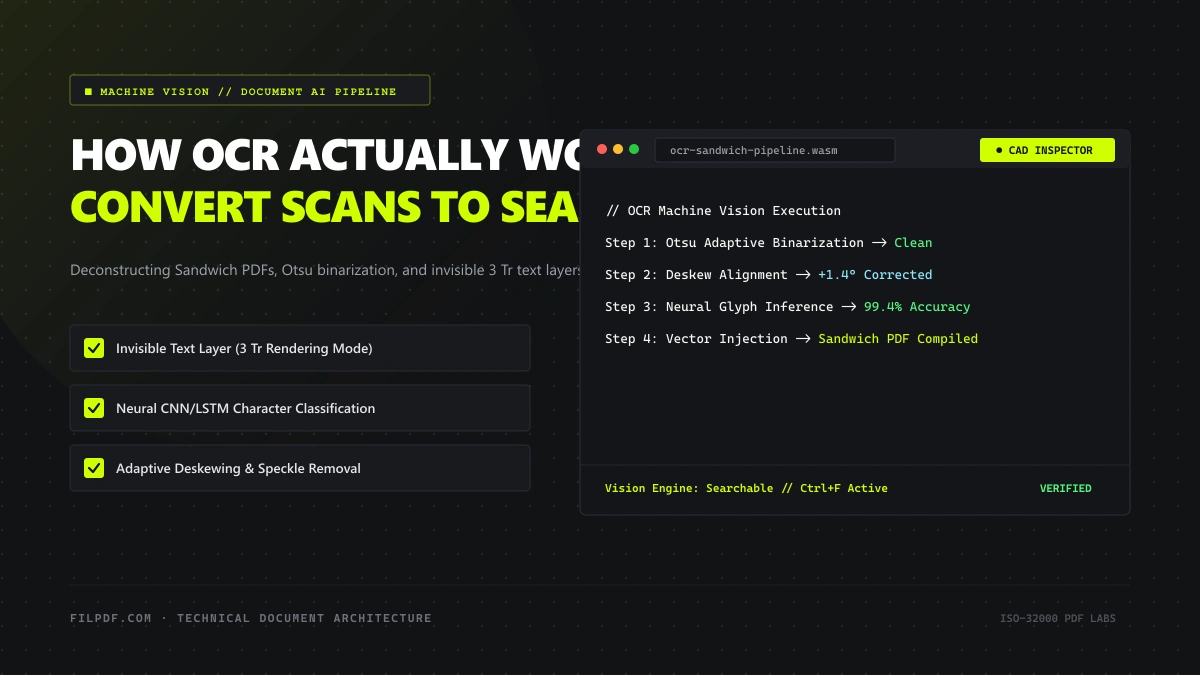
You receive a 50-page scanned legal deposition, real estate deed, or historical archive packet. You open the file, press Ctrl+F (or Cmd+F on macOS), and type a critical keyword: "Liability".
The search box flashes yellow: 0 matches found.
You click and drag your cursor across a paragraph to copy the text—nothing happens. The document behaves like a stubborn stone tablet.
Why? Because despite carrying a .pdf file extension, the document contains zero actual text characters. Internally, the PDF is merely a photographic snapshot—a grid of colored pixels wrapped in a PDF container. To your computer, a scanned page of legal prose is mathematically indistinguishable from a JPEG photograph of a sunset.
To make this document searchable, selectable, and editable, it must undergo Optical Character Recognition (OCR).
In this technical masterclass, we explore the internal architecture of OCR engines, deconstruct the mechanics of the "Sandwich PDF" (searchable PDF), analyze the multi-stage machine vision pipeline that translates pixels into typography, and demonstrate how to convert static scans into interactive documents with complete data privacy.
The Architecture of a Scanned PDF vs. a Native Digital PDF
To understand why a scanner cannot create selectable text, one must contrast how standard PDF viewports interpret digital content:
NATIVE DIGITAL PDF (Exported from Word / InDesign):
+-------------------------------------------------------------+
| /Contents Stream: BT /F1 12 Tf 72 712 Td (Invoice) Tj ET   |
| Character codes 'I','n','v','o','i','c','e' mapped to font  |
+-------------------------------------------------------------+
                              vs.
SCANNED RASTER PDF (From Office Scanner / Phone Camera):
+-------------------------------------------------------------+
| /Resources << /XObject << /Im0 12 0 R >> >>                 |
| /Contents: q 612 0 0 792 0 0 cm /Im0 Do Q                   |
| 12 0 obj << /Type /XObject /Subtype /Image /Width 2400 ... >>|
| (Pure raw bitmap pixel matrix. Zero typographic glyphs.)    |
+-------------------------------------------------------------+
When you export a document from Microsoft Word, the software writes typographic commands directly into the /Contents stream using the Tj operator. The PDF viewer knows the exact Unicode value of every character.
When an office scanner or mobile camera digitizes a physical sheet of paper, the optical sensor measures light reflections and generates a raster grid of pixels. It writes a single image XObject (/XObject /Subtype /Image) scaled to fill the page.
No characters exist in the file—only pixels.
The Ingenious Solution: The "Sandwich PDF"
How does modern document software make a scanned document selectable without ruining the authentic look of the original physical paper?
The answer is an elegant dual-layer engineering pattern known in the PDF industry as a Searchable PDF or "Sandwich PDF".
+-------------------------------------------------------------+
| TOP LAYER (Invisible Vector Text Layer):                    |
| • Font Rendering Mode: 3 Tr (Neither fill nor stroke text)  |
| • Precise Cartesian Coordinates: (x, y, width, height)      |
| • Handles Selection, Clipboard Copy, and Ctrl+F Search      |
+-------------------------------------------------------------+
                              ▲
                              │ (Stacked precisely over)
+-------------------------------------------------------------+
| BOTTOM LAYER (Visible Scanned Bitmap Image):                |
| • Original scanned photograph of the paper                  |
| • Preserves signatures, stamps, paper texture, and layout   |
| • Provides 100% authentic visual fidelity to the human eye   |
+-------------------------------------------------------------+
How the Magic Works: Text Rendering Mode `3 Tr`
In the PDF graphics specification (ISO 32000-1, Section 9.3.5), the text rendering operator `Tr` accepts an integer from 0 to 7 to dictate how glyphs are drawn: - `0 Tr`: Fill text (standard solid letters). - `1 Tr`: Stroke text (outline letters). - **`3 Tr`: Neither fill nor stroke text (Invisible text).**When an OCR pipeline runs on a scanned document:
- The machine vision algorithm identifies every word and calculates its exact coordinate bounding box on the page.
- The engine writes an invisible text layer using
3 Trpositioned at the exact pixel-level coordinates over the visible scanned letters. - When you look at the screen, your eyes see the crisp scanned image underneath.
- When you click and drag your cursor, the PDF viewer selects the invisible characters floating directly on top!
The result is the best of both worlds: 100% visual authenticity of the original paper document combined with full digital interactivity.
Inside the 5-Stage Machine Vision OCR Pipeline
Converting an imperfect, noisy scan into an accurate text layer requires a sophisticated computational pipeline:
[Raw Scanned Bitmap Image]
             │
             ▼
[Stage 1: Pre-processing & Binarization]
             │ ──> Otsu thresholding, noise removal, contrast enhancement
             ▼
[Stage 2: Deskewing & Orientation Correction]
             │ ──> Detect baseline angles (Radon/Hough transform)
             ▼
[Stage 3: Layout Analysis & Segmentation]
             │ ──> Identify columns, tables, headers, and text blocks
             ▼
[Stage 4: Neural Character Recognition (CNN/LSTM)]
             │ ──> Classify glyphs and calculate confidence scores
             ▼
[Stage 5: Coordinate Synthesis & PDF Compilation]
             │ ──> Inject invisible 3 Tr text layer into /Contents
             ▼
[Searchable Sandwich PDF]
Stage 1: Pre-processing & Binarization
Scanned paper is inherently messy: coffee stains, uneven lighting, shadows from paper creases, and ink bleed-through from the reverse side. - **Grayscale Conversion**: Reduces 24-bit color to 8-bit luminance. - **Adaptive Binarization (Otsu's Algorithm)**: Analyzes local pixel histograms and converts gray pixels into binary black (ink) and white (paper) pixels, stripping paper grain and background yellowing.Stage 2: Deskewing & Geometric Correction
If paper is fed into a flatbed scanner slightly crooked (even by 1.5 degrees), horizontal text lines tilt. - The engine uses the **Radon Transform** or **Hough Transform** to calculate the dominant baseline angle across all text rows. - It applies an inverse geometric rotation matrix to rotate the image back to absolute $0.0^\circ$ horizontal alignment.Stage 3: Page Layout Analysis (Zoning)
A human instantly recognizes the difference between a multi-column newspaper article, a table of financial figures, and an illustration caption. An algorithm must segment the page into logical zones: - **Connected Component Analysis (CCA)** groups adjacent black pixels into character blobs. - Line segmentation algorithms group blobs into horizontal text lines. - Column segmentation ensures that multi-column layouts read from top-to-bottom in column 1 before moving to column 2, preventing garbled cross-column text copying.Stage 4: Neural Feature Extraction & Classification
Modern OCR engines (such as the open-source Tesseract engine or specialized deep-learning models) utilize **Convolutional Neural Networks (CNN)** paired with **Long Short-Term Memory (LSTM)** recurrent networks: - The CNN extracts topological features: loops, vertical stems, crossbars, descenders, and serifs. - The LSTM models sequential character probabilities: if the engine detects the letters `"q"` and `"u"`, the probability that the next letter is a vowel is mathematically weighted. - The engine assigns a confidence score ($0.0$ to $1.0$) to every recognized word.Stage 5: Coordinate Synthesis and CMap Embedding
The recognized Unicode strings, along with their exact bounding boxes (`[x, y, width, height]`), are converted into PDF operators.A font descriptor dictionary and a ToUnicode CMap table are injected into the file structure, ensuring that when you copy text out of the document, the character codes map to standard Unicode characters rather than garbled symbols.
3 Fatal OCR Traps and How to Avoid Them
If a document is scanned at 72 DPI, small 9-point letters lack sufficient pixel resolution for feature extraction. The letters "e", "c", and "o" merge into ambiguous blobs, causing massive word error rates (WER).
Taking smartphone photos of documents at an angle causes perspective distortion (keystoning). Text near the top of the photo is smaller than text near the bottom, confusing font height baseline analyzers.
Running an English-only OCR model on a bilingual contract containing German umlauts (ä, ö, ü) or Spanish accents (ñ, é) leads to severe character truncation and corrupted search indexes.
The Privacy Revolution: In-Browser WebAssembly OCR
Historically, converting a scanned PDF into a searchable document required either:
- Installing heavyweight desktop software suites costing hundreds of dollars.
- Uploading confidential tax returns, patient medical records, and legal briefs to third-party cloud conversion websites.
Cloud conversion creates immense regulatory vulnerability: once your document is transmitted over the internet to an external server, you have lost physical custody of your data under GDPR, HIPAA, and SOC2 guidelines.
FilPDF solves this paradigm.
By compiling industry-leading OCR computer vision pipelines directly into WebAssembly (Wasm), FilPDF executes the entire binarization, neural character classification, and Sandwich PDF compilation pipeline locally inside your web browser's RAM sandbox.
Your files never leave your computer. You achieve enterprise-grade OCR with 100% data sovereignty.
Step-by-Step: Converting Scanned PDFs into Searchable Text
To transform static, unsearchable scans into interactive, searchable documents using FilPDF, follow this workflow:
Load Scanned Document into Browser Sandbox
Navigate to the FilPDF OCR PDF tool. Drag and drop your scanned document into the workspace.
Your document loads directly into browser memory. Zero bytes are uploaded to remote servers.
Extract searchable text layers, deskew scans, and compile authentic Sandwich PDFs directly in your local browser memory.
Select Document Language Model
Select the primary language of the source document (e.g., English, Spanish, German, French, Japanese).
Selecting the correct language loads specialized neural dictionaries that dramatically increase recognition accuracy for technical terminology, regional punctuation, and diacritics.
Execute Neural Text Recognition
Click Start OCR. The client-side engine executes the multi-stage machine vision pipeline:
- It binarizes each page image, eliminating shadows and specks.
- It detects baseline skew angles and straightens tilted rows.
- It extracts character contours and classifies glyphs using neural matrix evaluation.
- It synthesizes an invisible vector text layer using text rendering mode
3 Tr.
Export Searchable PDF or Convert to Word
Once processing finishes, download your new Searchable Sandwich PDF. You can now press Ctrl+F to locate any sentence, copy paragraphs to your clipboard, and feed the document into enterprise search engines.
If you need to completely rewrite the document content, run the newly recognized file through our PDF to Word tool to generate a fully editable .docx file with matching margins and font styles.
Scanned documents are notorious for massive file weights. As detailed in our technical guide on why PDFs expand in size, a 300 DPI scan can easily consume 10 MB per page.
After running OCR to establish the searchable text layer, pass your document through our FilPDF Compress PDF tool. Downsampling the background raster layer while preserving the invisible vector text layer reduces document sizes by 70% to 85% with zero impact on search accuracy!
Summary & Best Practices for Digitizing Paper
Turning physical paper archives into interactive digital assets is a cornerstone of modern document engineering.
Remember these essential guidelines:
- Scan at 300 DPI: 300 DPI provides the mathematical sweet spot between crisp character edge definition and manageable bitmap file sizes.
- Always insist on Sandwich PDFs: Never destroy the authentic visual scan; use invisible
3 Trtext layers to preserve legal proof while gaining digital searchability. - Audit reading order on multi-column pages: Verify that text selection flows logically across columns rather than reading horizontally across gutters.
- Protect client confidentiality: Use local in-browser OCR tools like FilPDF OCR PDF to prevent sensitive documents from leaking to third-party cloud servers.
Transform your static scans into searchable, high-value digital documents today using FilPDF OCR PDF.